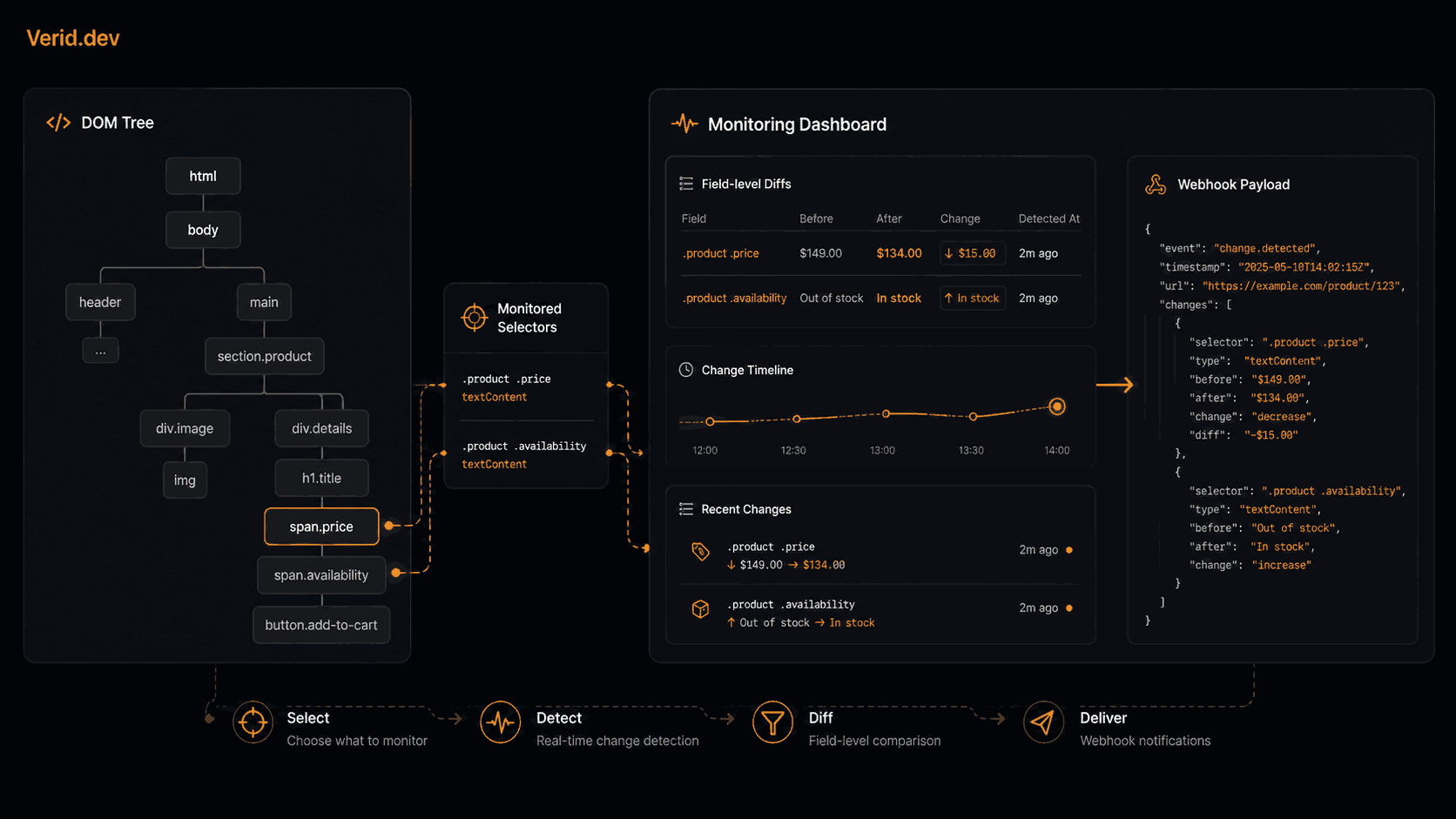
XPath Tutorial: A Practical Guide for Web Scraping and Monitoring
XPath has been around since 1999, but it remains one of the most reliable tools in a developer's scraping toolkit. CSS selectors get most of the attention because they're simpler to write. But the moment you need to select a parent element, match by text content, or navigate sideways through a table, CSS runs out of road and XPath is exactly where you want to be.
This guide covers everything you need: syntax, axes, functions, browser testing, Python and JavaScript examples, and how to use XPath with a monitoring API so you get structured alerts instead of raw HTML noise.
What is XPath?
XPath (XML Path Language) is a query language for selecting nodes from an XML or HTML document. It treats the document as a tree - every tag, attribute, and piece of text is a node - and gives you a compact syntax for pointing at exactly the ones you need.
Think of it like a filesystem path. Just as /home/user/docs/report.txt navigates directories, /html/body/div/p walks the DOM tree to a specific paragraph. The double-slash // shortcut skips to any matching node anywhere in the tree, so //p selects every paragraph regardless of where it sits.
The W3C XPath specification defines two major versions. XPath 1.0 is what every browser and most scraping libraries support. XPath 2.0 adds more functions but has limited browser support, so stick to 1.0 for scraping work.
Why XPath Matters for Scraping and Monitoring
Three things make XPath worth learning:
Bidirectional traversal. CSS selectors can only move from parent to child. XPath moves in any direction - up to ancestors, sideways to siblings, backward to preceding elements. If you need the <td> that comes after the one labeled "Price:", XPath handles that in one expression.
Text-based matching. You can select elements by their visible text content. //button[text()='Add to cart'] finds that button no matter where it sits in the DOM. CSS cannot do this at all.
Attribute extraction. XPath can return attribute values directly - /@href, /@data-price, /@aria-label - not just the element itself. This is useful when the data you care about lives in an attribute rather than visible text.
For monitoring use cases specifically, XPath lets you pin a selector to a meaningful content marker rather than a fragile position in the DOM. That makes your monitors far more resilient to site redesigns.
XPath Syntax Explained
Every XPath expression is built from a small set of building blocks.
Absolute vs Relative XPath
| Type | Starts with | Example | Risk |
|---|---|---|---|
| Absolute | / (single slash) | /html/body/div[2]/span | Breaks on any layout change |
| Relative | // (double slash) | //span[@class='price'] | Robust, preferred for scraping |
Absolute XPath follows the exact path from the root. Browser DevTools will generate these when you click "Copy XPath" - they look precise but they're extremely brittle. One new <div> inserted upstream and the expression returns nothing.
Relative XPath uses // to search anywhere in the document. It anchors to meaningful attributes or text instead of position, so it survives minor layout changes.
Always write relative XPath for scraping and monitoring.
Predicates
Predicates are the filters inside square brackets. They narrow down which nodes match.
//div[@class='price']         → div with class exactly equal to "price"
//div[contains(@class,'price')] → div whose class contains "price"
//li[position() > 2]          → list items after the second
//span[text()='Total:']       → span with that exact text
//tr[td[contains(text(),'USD')]] → table row containing a cell with "USD"
The contains() predicate is the most useful one to memorize. Unlike an exact match, it works even when an element has multiple classes like class="price primary bold".
Selecting Text and Attributes
Two suffixes control what you extract from a matched node:
/text()    → the direct text node of the element
/@href     → the value of the href attribute
/@aria-label → the value of aria-label
.          → all text including child elements (use with caution)
Use /text() for most cases. The . shorthand grabs text from child elements too, which often pulls in more than you want.
XPath Axes
Axes are what make XPath genuinely powerful compared to CSS. They let you navigate in any direction from your current node.
| Axis | Direction | Example |
|---|---|---|
child:: | Direct children | //ul/child::li |
parent:: | Immediate parent | //span[@class='price']/parent::div |
ancestor:: | All ancestors up the tree | //span/ancestor::section |
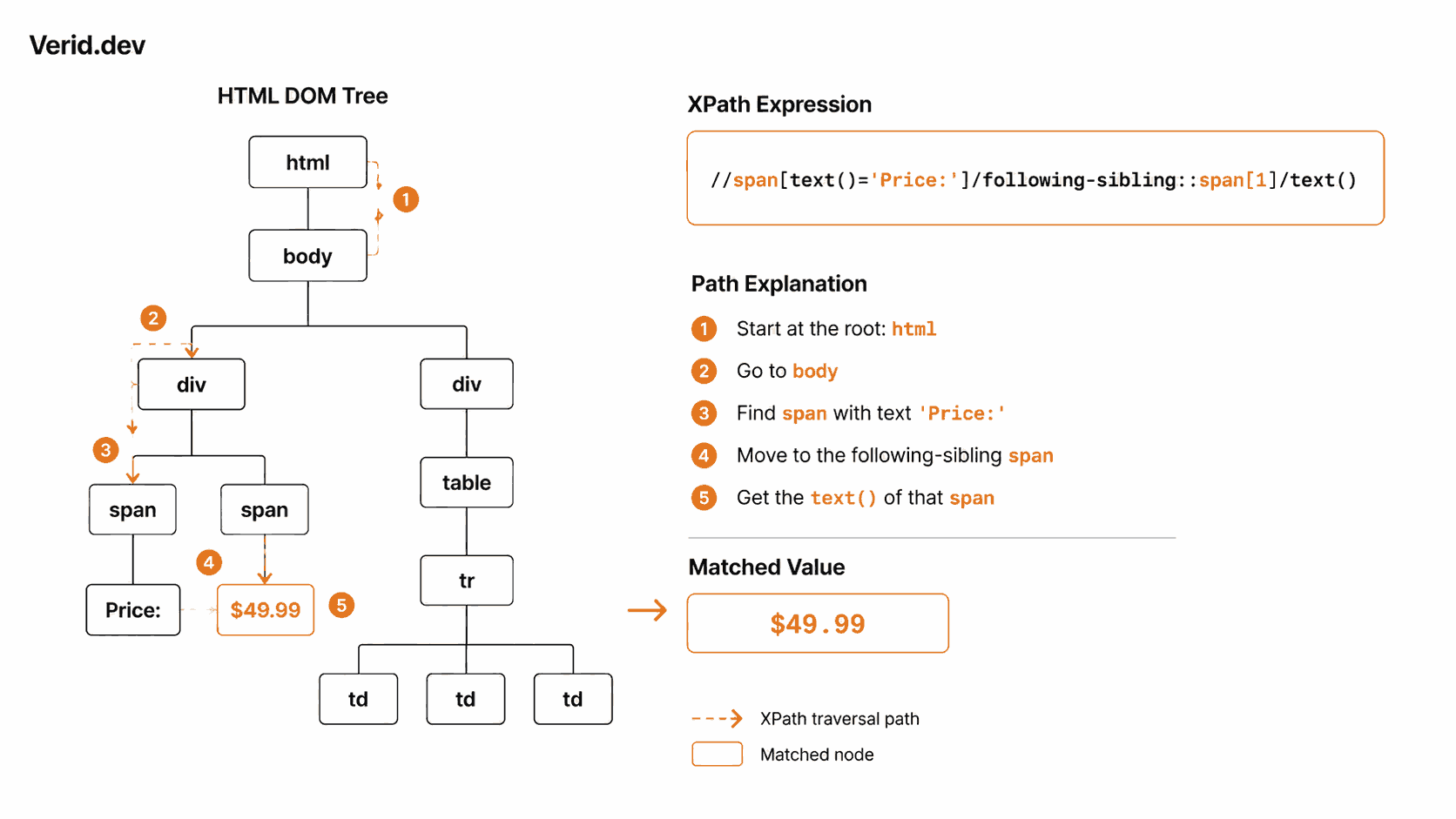
following-sibling:: | Siblings that come after | //td[text()='Price:']/following-sibling::td[1] |
preceding-sibling:: | Siblings that come before | //td[2]/preceding-sibling::td[1] |
descendant:: | All descendants | //div[@id='content']/descendant::a |
following:: | All nodes after in document order | //h2/following::p[1] |
The following-sibling axis is the one you reach for most often. Table data and label-value pairs are everywhere on the web, and //td[text()='Label']/following-sibling::td[1] is the pattern that extracts the value next to a label.
XPath Functions
XPath 1.0 ships with a useful set of string and node functions.
| Function | What it does | Example |
|---|---|---|
contains(str, substr) | True if string contains substring | contains(@class,'active') |
starts-with(str, prefix) | True if string starts with prefix | starts-with(@id,'product-') |
normalize-space(str) | Strips leading/trailing whitespace | normalize-space(text())='Price' |
text() | Selects text nodes | //h1/text() |
last() | Index of last node in set | //li[last()] |
position() | Index of current node | //tr[position() > 1] |
count(nodeset) | Number of nodes | count(//li) |
not(expr) | Logical negation | //div[not(@class)] |
string-length(str) | Length of string | string-length(text()) > 0 |
normalize-space() is underused but valuable. HTML often has invisible whitespace around text content, so text()='Price' fails while normalize-space(text())='Price' matches correctly.
XPath Operators
| Operator | Meaning | Example |
|---|---|---|
/ | Step into child | //div/span |
// | Any descendant | //span |
@ | Attribute | @class |
* | Wildcard element | //*[@id='main'] |
| | Union (combine results) | //h1 | //h2 |
and | Logical AND | [@class='a' and @id='b'] |
or | Logical OR | [@class='a' or @class='b'] |
= | Equals | [@data-status='active'] |
!= | Not equals | [@type!='hidden'] |
The union operator | is handy when you want to pull from multiple possible element types in one expression. The result is combined into a single node set.
XPath Examples
Select by ID
//*[@id='main-content']Select by class (exact)
//div[@class='product-price']Select by class (partial - preferred)
//div[contains(@class,'product-price')]Select by text content
//button[text()='Buy now']
//a[contains(text(),'Download')]
Navigate to sibling (label-value pattern)
//dt[text()='Stock:']/following-sibling::dd[1]/text()Extract an attribute value
//a[@class='download-link']/@href
//img[@alt='Product photo']/@src
//div[@data-testid='rating']/@aria-label
Select the Nth item
//ul[@id='results']/li[1]   → first item
//ul[@id='results']/li[last()] → last item
//table/tr[position() > 1]  → all rows except the header
Combine conditions
//div[@class='item' and @data-available='true']
//input[@type='text' or @type='email']
Testing XPath in the Browser
Before putting any expression into production, test it in your browser. Two approaches:
Console $x() shorthand
Open Chrome DevTools (F12), go to the Console tab, and run:
$x("//span[contains(@class,'price')]/text()")This evaluates the XPath against the current page and returns the matching nodes. You can inspect each result and check its text content directly.
DevTools Elements search
In the Elements tab, press Ctrl+F (or Cmd+F on Mac) to open the search bar. Paste an XPath expression there and DevTools highlights all matching elements on the page.
For one-off extraction from a static page, you can also run XPath in Python without writing a full scraper:
from lxml import html
import requests

page = requests.get("https://example.com")
tree = html.fromstring(page.content)

price = tree.xpath("//span[@class='price']/text()")
print(price)  # ['$29.99']
XPath with Python (lxml)
lxml is the standard for XPath in Python. It wraps the libxml2 C library, so it's fast and fully compliant with XPath 1.0.
from lxml import html
import requests

def scrape_product(url):
    response = requests.get(url, headers={"User-Agent": "Mozilla/5.0"})
    tree = html.fromstring(response.content)

    # Extract price - handles multiple class names
    price = tree.xpath("//span[contains(@class,'price')]/text()")

    # Label-value pattern: the td next to "Availability:"
    availability = tree.xpath(
        "//td[normalize-space(text())='Availability:']/following-sibling::td[1]/text()"
    )

    # Extract href attribute from the first matching link
    download_url = tree.xpath(
        "//a[contains(@class,'download')]/@href"
    )

    return {
        "price": price[0].strip() if price else None,
        "availability": availability[0].strip() if availability else None,
        "download_url": download_url[0] if download_url else None,
    }
html.fromstring() handles messy real-world HTML more gracefully than etree.fromstring(). When the server sends compressed content, pass response.content (bytes) not response.text.
XPath in JavaScript (Browser and Node.js)
In the browser, the native document.evaluate() method runs XPath queries:
function xpath(expression, context = document) {
  const result = document.evaluate(
    expression,
    context,
    null,
    XPathResult.FIRST_ORDERED_NODE_TYPE,
    null
  );
  return result.singleNodeValue;
}

function xpathAll(expression, context = document) {
  const result = document.evaluate(
    expression,
    context,
    null,
    XPathResult.ORDERED_NODE_SNAPSHOT_TYPE,
    null
  );
  return Array.from({ length: result.snapshotLength }, (_, i) =>
    result.snapshotItem(i)
  );
}

// Usage
const priceEl = xpath("//span[contains(@class,'price')]");
console.log(priceEl?.textContent);

const allLinks = xpathAll("//a[@href]");
allLinks.forEach(a => console.log(a.getAttribute("href")));
In Node.js with Playwright:
const { chromium } = require("playwright");

(async () => {
  const browser = await chromium.launch();
  const page = await browser.newPage();
  await page.goto("https://example.com");

  // Playwright's locator API supports XPath with the xpath= prefix
  const price = await page.locator("xpath=//span[contains(@class,'price')]").textContent();
  console.log("Price:", price);

  await browser.close();
})();
XPath vs CSS Selectors
Neither is universally better. Here's where each one actually wins:
| Capability | XPath | CSS Selectors |
|---|---|---|
| Select by text content | Yes - text()='Buy' | No |
| Traverse to parent | Yes - parent::div | No |
| Traverse to previous sibling | Yes - preceding-sibling:: | No |
| Match partial attribute | Yes - contains(@class,'x') | Yes - [class*='x'] |
| Select attribute value directly | Yes - /@href | No |
| Readability for simple queries | Verbose | Cleaner |
| Performance | Slightly slower | Slightly faster |
| Browser support | Universal | Universal |
| Text node selection | Yes | No |
The performance gap is real but usually irrelevant. Network latency dominates scraping time by several orders of magnitude. Whether a selector runs in 0.1ms or 0.5ms does not matter.
Use CSS selectors when the target has a stable class or ID and you just need to grab text or an attribute quickly.
Use XPath when you need parent traversal, text matching, sibling navigation, or the markup has no useful IDs or classes to anchor to.
Most production scrapers use both - CSS for simple cases, XPath for the edges.
Common XPath Mistakes
| Mistake | Problem | Fix |
|---|---|---|
| Copying absolute XPath from DevTools | Breaks on any DOM change | Rewrite as relative with meaningful attribute anchor |
| Exact class match | Fails when element has multiple classes | Use contains(@class,'name') |
text() vs . confusion | . grabs text from all children | Use /text() for direct text only |
| Whitespace in text() match | text()='Price' fails with surrounding spaces | Wrap with normalize-space() |
| Namespace issues on XHTML | XPath returns nothing | Use local-name(): //*[local-name()='div'] |
| 1-indexed positions | XPath positions start at 1, not 0 | li[1] is the first item, not li[0] |
| No result handling | Script crashes on None | Always check if result list is non-empty before indexing |
Using XPath for Website Monitoring
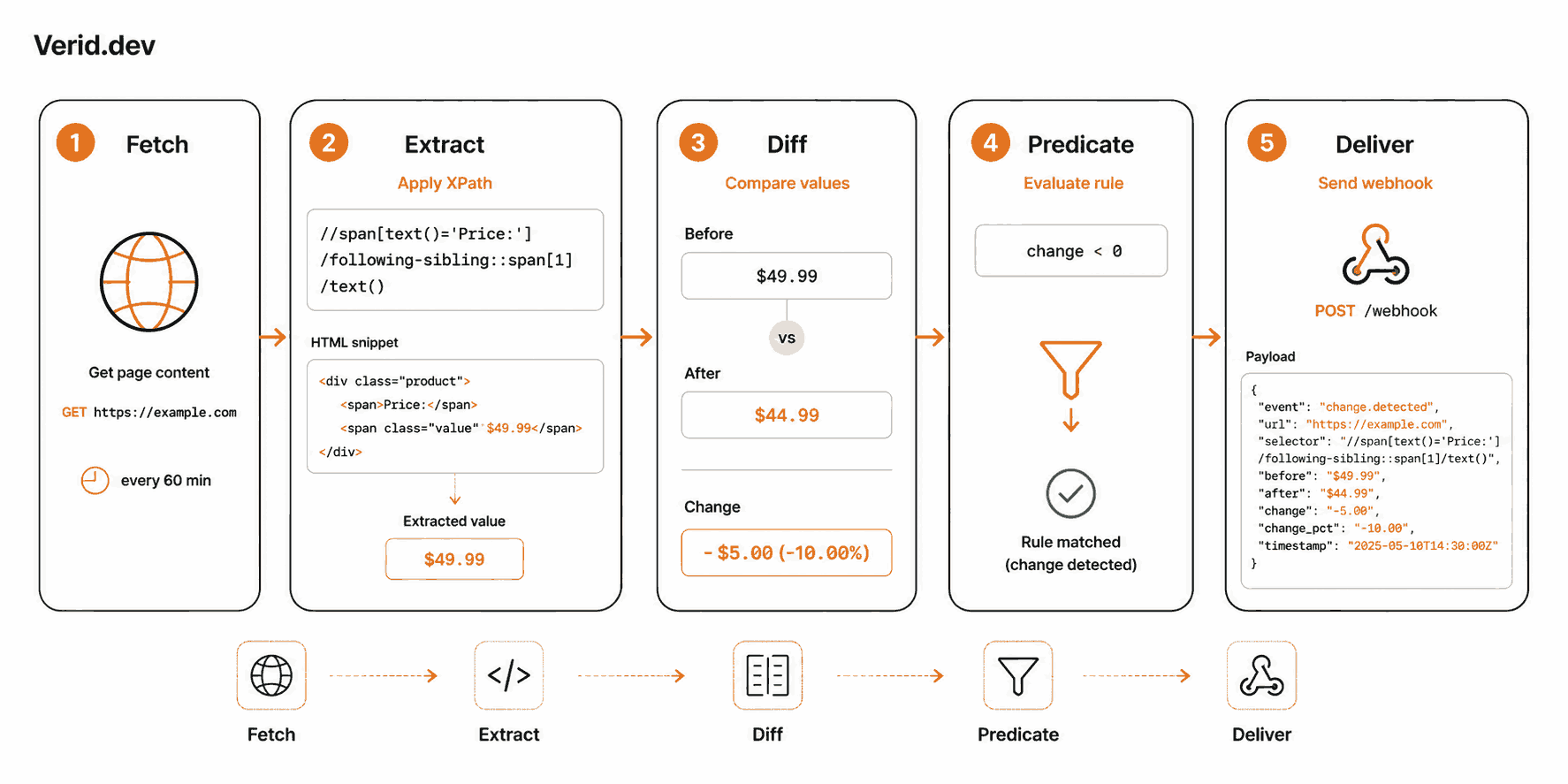
Scraping is one use case. Monitoring is another - and it's where XPath selectors have a different job. Instead of extracting data once, a monitor runs your XPath on a schedule and fires an alert only when the extracted value changes.
The challenge with DIY monitoring is everything around the selector: scheduling, state storage, diffing old vs new values, retry logic, and webhook delivery. That's a lot of infrastructure for what should be a simple "tell me when this value changes" workflow.
This is what Verid is built for. You write the XPath, Verid handles the rest - fetching (including JS-heavy pages via headless browser fallback), field-level diff, predicate evaluation, and signed webhook delivery.
Using XPath with Verid
Verid's XPath extraction uses XPath 1.0. You configure it by setting method: "xpath" in your extract_config and mapping field names to expressions.
Basic monitor - track a ticket price
{
  "name": "Concert ticket price",
  "url": "https://tickets.example.com/event/123",
  "schedule_interval_seconds": 900,
  "extract_config": {
    "method": "xpath",
    "fields": {
      "price": "//span[contains(@class,'ticket-price')]/text()",
      "availability": "//div[@data-status]/@data-status"
    }
  },
  "diff_predicate": {
    "type": "field_changes",
    "field": "price"
  },
  "deliveries": [
    { "type": "webhook", "url": "https://your-app.com/hooks" }
  ]
}
When the price field changes, Verid fires a signed webhook with the before and after values. You don't write any scheduling, diffing, or retry logic.
Label-value pattern - no classes available
Some pages use generic markup with no meaningful classes. XPath handles it via the sibling axis:
{
  "method": "xpath",
  "fields": {
    "price": "//span[text()='Price:']/following-sibling::span[1]/text()",
    "venue": "//span[text()='Venue:']/following-sibling::span[1]/text()"
  }
}
Extract attribute values
{
  "method": "xpath",
  "fields": {
    "version": "//section[contains(@class,'latest-release')]/h2/text()",
    "download_url": "//a[contains(@class,'download-btn')]/@href",
    "rating": "//div[@data-testid='rating']/@aria-label"
  }
}
Create the monitor via REST API
curl -X POST https://api.verid.dev/v1/monitors \
  -H "Authorization: Bearer vrd_your_api_key" \
  -H "Content-Type: application/json" \
  -d '{
    "name": "Software version tracker",
    "url": "https://example.com/changelog",
    "schedule_interval_seconds": 3600,
    "extract_config": {
      "method": "xpath",
      "fields": {
        "version": "//section[contains(@class,\"latest-release\")]/h2/text()"
      }
    },
    "diff_predicate": { "type": "field_changes", "field": "version" },
    "deliveries": [{ "type": "webhook", "url": "https://your-app.com/hooks" }]
  }'
The XPath extraction guide on Verid has more examples including table row extraction and aria-label scraping.
Real-World Monitoring Examples
Competitor pricing table. Your competitor publishes a pricing page with a table. No useful IDs, just a plain <table>. XPath makes it straightforward:
//table[@id='pricing-table']/tr[2]/td[2]/text()Pair this with a field_decreases_by_percent predicate and you get a webhook when their price drops by 5% or more - without any polling logic on your end.
Software release tracking. Many software changelog pages have an unlabeled <h2> with the version number. If they don't use semantic classes:
//div[contains(@class,'release')][1]/h2/text()Combined with Verid's field_changes predicate, this fires the moment a new version appears.
Availability monitoring. A product page stores stock status in a data- attribute:
//button[@data-product-id]/@data-availabilityWhen this attribute flips from "out_of_stock" to "in_stock", the field_equals predicate fires and you get the alert.
XPath Best Practices
- Anchor to stable attributes.
@id,@data-testid,@namechange rarely. Class names get refactored constantly. Prefer data attributes when they exist. - Use
contains()for class matching. An element can have multiple classes.@class='price'fails the moment the markup becomesclass='price active'.contains(@class,'price')stays robust. - Use
/text()not.. The.shortcut returns all text including child element text. It's easy to accidentally grab navigation link text or icon labels that way. - Wrap text matches in
normalize-space(). HTML whitespace is unpredictable.normalize-space(text())='Price'matches even when the source has\n Price\n. - Test with
$x()before deploying. A 30-second test in the browser console saves hours of debugging broken monitors. - Avoid position-only expressions.
//div[3]/span[2]is as fragile as absolute XPath. If another<div>gets inserted, you're selecting the wrong element. - Prefer specific over generic.
//div[contains(@class,'product-price')]is better than//div//span/text()even if both return the right value today.
Troubleshooting XPath
Expression returns empty results
- Check for namespace issues on XHTML pages: use
//*[local-name()='div']to bypass namespace prefixes - The page may render content via JavaScript. Your XPath is correct but the static HTML doesn't include the element yet - you need a headless browser to run the JS first. Verid auto-escalates to a headless browser when needed.
- Whitespace mismatch in a text() predicate - wrap with
normalize-space()
Expression returns too many results
- Add more specificity to your predicate:
//div[contains(@class,'product') and @data-id] - Anchor the search context with a known parent:
//section[@id='main']//span[@class='price']
Browser XPath differs from scraper results
The browser DevTools preview uses the live DOM after JavaScript runs. Your scraper may be working on the raw HTML from the server response. Either add a headless browser step or adjust your selector to work on the pre-JS markup.
Position predicates return the wrong element
Remember XPath is 1-indexed. li[1] is the first item, li[0] matches nothing.
Conclusion
XPath is not a replacement for CSS selectors - it's the tool you reach for when CSS can't handle the job. Parent traversal, text matching, and sibling navigation are genuinely things CSS cannot do. Learning when to use each selector type is the skill that separates scrapers that work from scrapers that work reliably.
For monitoring specifically, XPath lets you anchor your selectors to content meaning rather than DOM position, which means your monitors survive site redesigns more often. Pair that with a monitoring API like Verid that handles the scheduling, diffing, and webhook delivery, and you get structured alerts without maintaining scraping infrastructure.
Start with the XPath extraction guide to see real configuration examples, or check out the CSS selector guide if you want to compare both approaches side by side. If you're building a full monitoring setup, the website change monitoring guide covers the full pipeline from selector to alert.
Frequently Asked Questions
What is the difference between absolute and relative XPath?
Absolute XPath starts from the root element with a single / and follows the exact path through the DOM tree, like /html/body/div[2]/span. It breaks the moment any parent element changes. Relative XPath starts with // and searches anywhere in the document for a matching node based on attributes or content, like //span[contains(@class,'price')]. Always write relative XPath for scraping and monitoring - it survives minor layout changes that would break absolute expressions.
Can XPath select elements by visible text?
Yes, and this is one of the main reasons to use XPath over CSS selectors. The text() function matches the text content of an element: //button[text()='Add to cart'] finds that button regardless of where it sits in the DOM. The contains() function handles partial matches: //a[contains(text(),'Download')]. CSS selectors have no equivalent capability.
Why does my XPath work in Chrome DevTools but not in my scraper?
DevTools evaluates XPath against the live DOM - the page after JavaScript has run and rendered all dynamic content. Most scraping libraries work on the raw HTML response from the server, before any JavaScript executes. If your target element is injected by JavaScript, you need a headless browser (Playwright, Puppeteer, or Selenium) to render the page first. Alternatively, look for an API endpoint the page calls and scrape that directly instead.
When should I use XPath instead of CSS selectors?
Use XPath when you need to navigate to a parent or previous sibling element, when you need to match elements by their text content, when the element has no useful class or ID to anchor a CSS selector, or when you need to extract an attribute value directly. Use CSS selectors for simple selections by class, ID, or data attribute where the target is a direct descendant. Many production scrapers use both - CSS selectors for straightforward cases and XPath for complex ones.
About the author

Software Engineer
Suleman is a software engineer working on backend systems and browser automation at Verid. Much of his time goes to the unglamorous half of monitoring: brittle selectors, anti-bot interstitials, dedupe logic, and that’s what he writes about.
More from Suleman →Related posts
API Monitoring vs Scraping: Why the Loop Is the Product
Discover why API monitoring outperforms scraping. Learn how Verid.dev simplifies change detection with continuous monitoring and webhooks.
Read the post →monitoringAPI Contract Monitoring: How to Catch Breaking Changes Before They Hit Production
Learn how API contract monitoring catches breaking changes before production. Schema drift, field-level diff, and continuous JSON API monitoring explained.
Read the post →monitoringHow to Monitor Job Listings for Keywords and Get Instant Alerts
Learn how to track new job postings automatically using Verid. Set keyword filters, configure smart alerts, and get notified the moment a match appears.
Read the post →web scrapingWeb Scraping Legality in 2026: What Every Developer Should Know Before Writing a Single Line
Is web scraping legal in 2026? Learn what the law actually says about public data, CFAA, GDPR, robots.txt, and how to build compliant data workflows.
Read the post →