How to Track Competitor Ad and Landing Page Copy Changes (And Get Alerted the Moment They Update)
Learn how to track competitor ad landing pages, headlines, pricing, and CTAs automatically using Verid's web change detection API. No coding required to start.

Your competitor just changed their homepage headline. Then their pricing page. Then their primary CTA button. You found out three weeks later when a prospect mentioned it on a sales call.
That is a gap in your competitive intelligence, and it happens to almost every marketing team that relies on manual checks or screenshot diff tools.
This guide shows you exactly how to use Verid to automatically monitor competitor landing pages, detect copy changes the moment they happen, and route those alerts to your email, Slack, or any endpoint your team already uses.
What Is Competitor Ad and Landing Page Copy Tracking?
Competitor copy tracking is the practice of watching the live content on a competitor's public web pages and receiving a notification whenever that content changes.
The pages that matter most are usually the ones competitors send paid traffic to: their homepage hero, their pricing page, their feature comparison pages, and any dedicated landing pages they run alongside Google Ads or LinkedIn campaigns. These pages carry their best-performing messaging. When the copy changes, something strategic has shifted.
Tracking copy manually means visiting each page on a schedule and comparing what you see to what you remember. That does not scale beyond one or two competitors, and it misses overnight changes entirely.
Automated copy tracking tools like Verid replace manual visits with a continuous monitoring loop that extracts the specific text fields you care about, compares each run to the previous one, and delivers a structured before-and-after diff when something changes.
What Changes Should You Monitor?
Not every byte change on a landing page signals a strategic shift. The elements worth tracking are:
Hero headlines. The main H1 on a homepage or campaign landing page is the clearest signal of positioning. When it changes, a competitor is testing or launching a new angle.
Sub-headlines and body copy. Supporting copy often carries specific feature claims or value propositions. Changes here can reveal a product update or a new competitive angle the team is betting on.
Primary and secondary CTA buttons. A shift from "Get a demo" to "Start free" signals a change in acquisition strategy, often from sales-led to product-led.
Pricing copy. Pricing page changes, including price point wording, tier names, feature lists per tier, and promotional offers, are among the highest-value signals in competitive monitoring.
Social proof lines. A customer count increasing from "1,200 teams" to "5,000 teams" is a signal. A new logo appearing in the "trusted by" row matters. So does a new G2 badge or rating.
Promotional banners. Limited-time offers, discount callouts, and seasonal promotions appear and disappear quickly. Catching them helps you understand your competitor's promotional calendar.
Feature positioning. The language used to describe a feature often reflects how it is being positioned to buyers. Tracking feature page copy helps you stay current on how a competitor explains their product.
Why Manual Monitoring Does Not Scale
Picture a growth team at a SaaS company with five direct competitors. Each competitor has a homepage, a pricing page, two or three feature pages, and at least one active campaign landing page. That is thirty to fifty URLs to check, each potentially changing at any time.
If the team checks each page once a week, they are working with potentially week-old intelligence. If something changes on a Tuesday night before a Wednesday sales call, they walk into that call unprepared.
Screenshot diff tools partially solve this. They take a picture of a page on a schedule and alert you when the picture changes. The problem is that modern landing pages constantly change in ways that are not strategic: rotating ads, live chat badges, cookie consent banners, personalization scripts, timestamp updates, and A/B test variants. Screenshot tools fire on all of these. Teams quickly learn to ignore the alerts, and then they miss the real changes too.
What you actually want is to track specific named fields, like the hero headline text, the pricing tier names, or the primary CTA label, and fire an alert only when those specific values change. That is the problem Verid was built to solve.
Using Verid From the Dashboard: A Step-by-Step Walkthrough
This section walks through setting up a real competitor copy monitor for HubSpot's marketing hub landing page (https://www.hubspot.com/products/marketing). The steps are the same for any competitor URL.
Step 1: Start a Free Trial
Go to verid.dev/auth/signup and create an account. No credit card is needed. The 14-day free trial includes unlimited monitors and 200 runs, which is enough to test this workflow. After that, plans start at $9/month for 1,000 runs.
Step 2: Get Your API Key
After signing in, open the API Keys page in your dashboard. Create a new key. It will start with the prefix vrd_. Copy it somewhere safe.
Step 3: Create Your First Monitor via the API
Verid is API-first. You configure monitors by sending a JSON request to the API. Here is a monitor for HubSpot's marketing hub page that extracts the hero headline, primary CTA, and a pricing signal:
curl -X POST https://api.verid.dev/v1/monitors \
  -H "Authorization: Bearer vrd_your_api_key" \
  -H "Content-Type: application/json" \
  -d '{
    "name": "HubSpot Marketing Hub - Copy Monitor",
    "url": "https://www.hubspot.com/products/marketing",
    "schedule_interval_seconds": 86400,
    "fetch_mode": "browser",
    "extract_config": {
      "method": "css",
      "fields": {
        "hero_headline": "h1",
        "hero_subheadline": "h1 + p",
        "primary_cta": "a.cta-button"
      }
    },
    "diff_predicate": {
      "type": "any_field_changes"
    },
    "deliveries": [
      { "type": "email", "to": "your-email@company.com" }
    ]
  }'
Breaking down each field:
name- A human-readable label you will see in your dashboard and in alert emails.url- The exact page to monitor. Use the page your competitor sends ad traffic to, not just their homepage.schedule_interval_seconds- Set to86400for daily checks (24 hours). A daily monitor uses about 30 runs a month, well inside the Lite plan's 1,000 ($9/month), and about 14 of the free trial's 200 runs over its 14 days. Every plan can check as often as every 60 seconds; shorter intervals just use more runs (hourly is about 720 a month).fetch_mode: "browser"- Marketing sites built on React, Next.js, or similar frameworks render text with JavaScript. Setting browser mode tells Verid to render the full page in a headless browser before extracting, so you get the real visible text rather than empty strings.extract_config- The CSS extraction method with named fields. Each field name becomes a key in your before-and-after diff.diff_predicate-any_field_changesfires a delivery any time any of the tracked fields change from the previous run. This is the right choice when you want to know about any copy update.deliveries- An email delivery sends you a formatted notification to the address you specify. No dashboard login required to see the alert.
Step 4: Confirm the Monitor Is Running
After creation, the API returns the full monitor object including its id, status (which will be active), and next_run_at. You can also retrieve it at any time:
curl https://api.verid.dev/v1/monitors/YOUR_MONITOR_ID \
  -H "Authorization: Bearer vrd_your_api_key"
Step 5: Trigger a Manual Run to Test
To confirm extraction is working without waiting for the scheduled run:
curl -X POST https://api.verid.dev/v1/monitors/YOUR_MONITOR_ID/run \
  -H "Authorization: Bearer vrd_your_api_key" \
  -H "Content-Type: application/json" \
  -d '{}'
This queues an immediate run. The first run establishes a baseline; no delivery fires on the first run because there is nothing to compare against. On the second run, if any field differs, your email alert goes out.
Step 6: Review Run Results
List recent runs for your monitor:
curl https://api.verid.dev/v1/monitors/YOUR_MONITOR_ID/runs \
  -H "Authorization: Bearer vrd_your_api_key"
Each run record includes status, extracted (the current field values), diff (what changed from the previous run), and delivery_triggered (whether an alert was sent).
Choosing the Right Extraction Method
Verid supports six extraction methods. For competitor copy monitoring, three of them are most relevant.
| Method | How It Works | Pros | Cons | Best Use Cases |
|---|---|---|---|---|
| CSS Selector | Targets specific HTML elements by class, ID, or attribute | Precise, fast, zero LLM quota usage | Breaks when the page HTML is restructured | Stable pages where you know the selector for the headline or CTA |
| AI / LLM Prompt | You describe what to extract in plain English; the model finds it | Works when selectors would be brittle; survives layout changes | Counts against monthly LLM quota (50 during the free trial) | Marketing sites that redesign often; unstructured copy |
| Full-Page Hash | Hashes the entire rendered page | No selector needed; catches anything | High false-positive rate from dynamic content | Backup "something changed" monitor alongside a targeted CSS monitor |
Which Method to Use for Each Element
Hero headlines and sub-headlines: CSS selector is the best starting point. Inspect the element in your browser DevTools and copy the selector. If the competitor uses a JavaScript framework and headlines change frequently, switch to AI extraction.
CTA button text: CSS selector is ideal since CTA buttons are almost always styled with distinct class names. A selector like a.btn-primary or button[data-cta] is usually stable.
Pricing copy: If the pricing page has clearly structured HTML, use CSS selectors targeting the price display elements. For pages with complex layouts, AI extraction with a prompt like "Extract the price for each tier as a number and the tier name as a string" is more reliable.
Feature lists: AI extraction works well here. A prompt such as "List the three most prominent feature claims on this page" lets Verid track whether the feature narrative changes even if the page layout shifts.
Entire landing pages with unpredictable layouts: Run a full-page hash monitor as a secondary signal. Pair it with a targeted CSS or AI monitor. The full-page monitor tells you when anything changed; the targeted monitor tells you exactly what.
Example Monitoring Workflow: Catching a Competitor Pricing Change
Here is what a real workflow looks like from detection to action.
Monday, 9:00 AM. A competitor updates their pricing page, renaming a tier from "Business" to "Growth," dropping the monthly price from $149 to $129, and adding a new "priority support" feature to that tier.
Monday, 9:04 AM. Verid's scheduled run fetches the competitor pricing page. The CSS extractor compares the current tier_name, tier_price, and tier_features fields to the values stored from the previous run. All three fields differ.
Monday, 9:05 AM. Because the any_field_changes predicate returns true, Verid sends an email delivery with the before-and-after diff. The email lands in the team's shared competitive-intel@company.com inbox.
Monday, 9:20 AM. A marketer opens the email and sees:
tier_name: "Business" → "Growth"tier_price: "$149" → "$129"tier_features: (previous list) → (new list including "Priority support")
Monday, 9:30 AM. The marketer forwards the diff to the product team and the sales team. The sales team updates their competitive battlecard before the day's calls. The product team logs the feature claim for roadmap consideration.
No manual page checks. No screenshot noise. Actionable intelligence within minutes of the change.
What the Email Alert Looks Like
When a predicate fires, Verid sends an email delivery with a structured summary of the change. Based on Verid's delivery system, a real alert for the above workflow would appear as a plain, readable summary showing the monitor name, the URL that changed, the time, and the before-and-after values for each changed field.
For a pricing page monitor, the content would include something like:
Monitor: Competitor Pricing Page - acme-saas.com/pricing
URL: https://acme-saas.com/pricing
Changed at: 2026-06-10 09:04 UTC

Fields changed: tier_name, tier_price, tier_features

tier_name
  Before: Business
  After:  Growth

tier_price
  Before: $149/mo
  After:  $129/mo

tier_features
  Before: Includes advanced analytics, API access, 10 seats
  After:  Includes advanced analytics, API access, 10 seats, Priority support
No dashboard login needed. The diff is right in the email.
Using the Verid API
The examples above use the REST API directly with curl. Here is a complete reference for the monitor creation call relevant to competitor copy tracking.
Endpoint
POST https://api.verid.dev/v1/monitorsRequest Headers
Authorization: Bearer vrd_your_api_key
Content-Type: application/json
Full Request Body for a Competitor Copy Monitor
curl -X POST https://api.verid.dev/v1/monitors \
  -H "Authorization: Bearer vrd_your_api_key" \
  -H "Content-Type: application/json" \
  -d '{
    "name": "Competitor Pricing Page Monitor",
    "url": "https://www.notion.so/pricing",
    "schedule_interval_seconds": 3600,
    "fetch_mode": "browser",
    "extract_config": {
      "method": "css",
      "fields": {
        "plan_free_cta":     ".pricing-card:nth-child(1) a.cta",
        "plan_plus_price":   ".pricing-card:nth-child(2) .price-amount",
        "plan_plus_cta":     ".pricing-card:nth-child(2) a.cta",
        "plan_business_price": ".pricing-card:nth-child(3) .price-amount",
        "plan_business_features": ".pricing-card:nth-child(3) ul.feature-list"
      }
    },
    "diff_predicate": {
      "type": "any_field_changes"
    },
    "deliveries": [
      { "type": "email", "to": "team@yourcompany.com" },
      { "type": "slack", "webhookUrl": "https://hooks.slack.com/services/YOUR/SLACK/WEBHOOK" }
    ]
  }'
The schedule_interval_seconds value of 3600 (one hour) uses about 720 runs a month, which fits the Lite plan's 1,000 runs or above. To make the free trial's 200 runs last the full 14 days, use 86400 for daily checks.
Response
A successful request returns HTTP 201 Created with the monitor object, including its id and next_run_at timestamp.
{
  "id": "a1b2c3d4-...",
  "name": "Competitor Pricing Page Monitor",
  "url": "https://www.notion.so/pricing",
  "status": "active",
  "schedule_interval_seconds": 3600,
  "next_run_at": "2026-06-13T11:00:00Z",
  "created_at": "2026-06-13T10:00:00Z"
}
Updating a Monitor
To change the schedule or add a new delivery channel, use PATCH:
curl -X PATCH https://api.verid.dev/v1/monitors/YOUR_MONITOR_ID \
  -H "Authorization: Bearer vrd_your_api_key" \
  -H "Content-Type: application/json" \
  -d '{
    "schedule_interval_seconds": 900
  }'
Pausing a Monitor
When a competitor's site is undergoing a major redesign and every run would fire, pause the monitor:
curl -X POST https://api.verid.dev/v1/monitors/YOUR_MONITOR_ID/pause \
  -H "Authorization: Bearer vrd_your_api_key" \
  -H "Content-Type: application/json" \
  -d '{}'
Resume it when you are ready to track normally:
curl -X POST https://api.verid.dev/v1/monitors/YOUR_MONITOR_ID/resume \
  -H "Authorization: Bearer vrd_your_api_key" \
  -H "Content-Type: application/json" \
  -d '{}'
Using the Verid Node.js SDK
For teams that want to manage the monitors programmatically, Verid publishes an official Node.js SDK on npm.
Installation
npm install @verid.dev/sdkCreating a Competitor Copy Monitor
import { VeridClient } from '@verid.dev/sdk';

const client = new VeridClient({
  apiKey: process.env.VERID_API_KEY!,
});

const monitor = await client.monitors.create({
  name: 'Competitor Homepage Copy - notion.so',
  url: 'https://www.notion.so',
  schedule_interval_seconds: 86400,
  fetch_mode: 'browser',
  extract_config: {
    method: 'css',
    fields: {
      hero_headline:    'h1',
      hero_subheadline: 'h1 + p',
      primary_cta:      'a.cta-button',
    },
  },
  diff_predicate: { type: 'any_field_changes' },
  deliveries: [
    { type: 'email', to: 'marketing@yourcompany.com' },
  ],
});

console.log('Monitor created:', monitor.id);
Creating a Monitor with AI Extraction
For a competitor's landing page that rebuilds its layout frequently, AI extraction is more resilient:
const aiMonitor = await client.monitors.create({
  name: 'Competitor Feature Page - AI Extraction',
  url: 'https://www.airtable.com/product',
  schedule_interval_seconds: 86400,
  fetch_mode: 'browser',
  extract_config: {
    method: 'prompt',
    prompt:
      'Extract the main product headline, the primary call-to-action button text, and the three most prominently featured product capabilities from this page. Use null for any field not found.',
    schema: {
      headline:       'string',
      primary_cta:    'string',
      capability_one: 'string',
      capability_two: 'string',
      capability_three: 'string',
    },
  },
  diff_predicate: { type: 'any_field_changes' },
  deliveries: [
    { type: 'slack', webhookUrl: process.env.SLACK_WEBHOOK_URL! },
  ],
});
Listing All Active Monitors
const { data } = await client.monitors.list();

for (const monitor of data) {
  console.log(monitor.name, monitor.status, monitor.next_run_at);
}
Triggering a Manual Run
const run = await client.monitors.runNow(monitor.id);
console.log('Run queued:', run.run_id);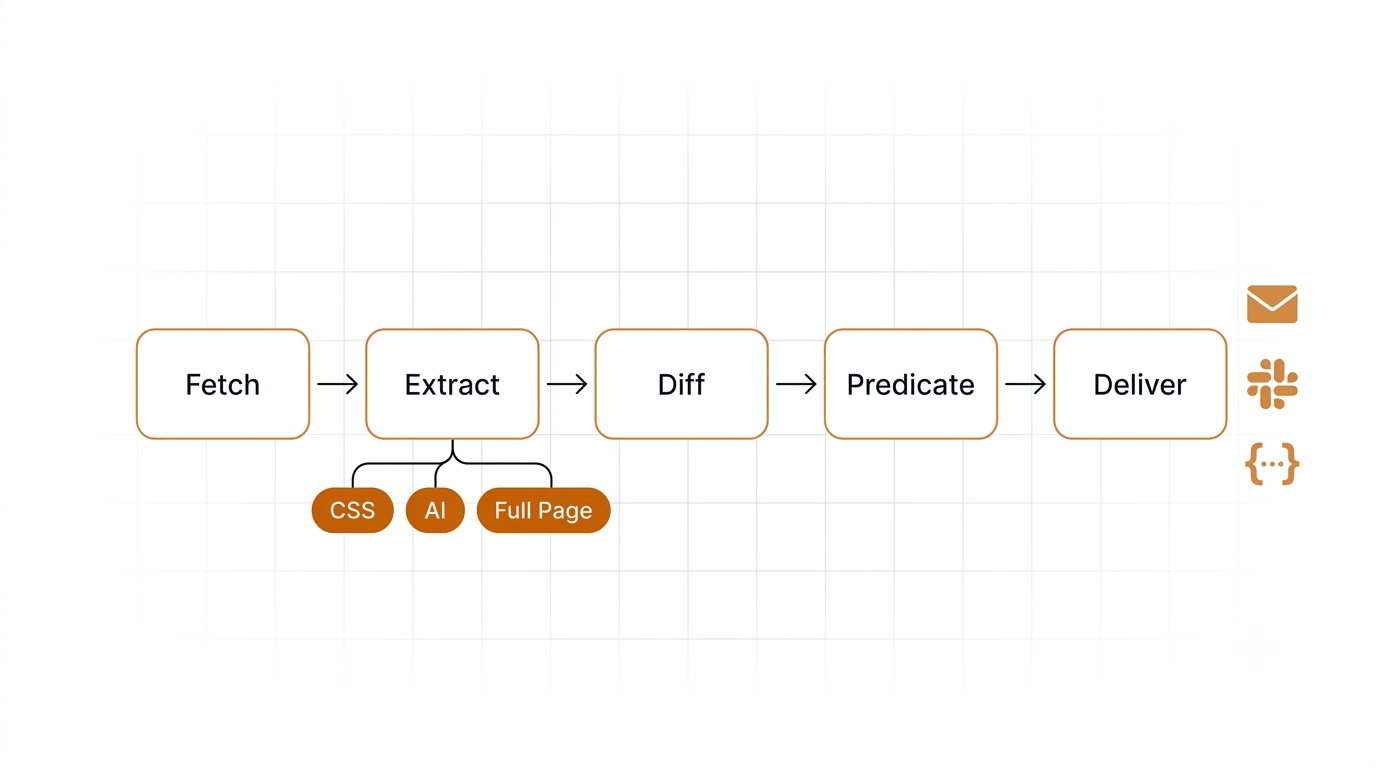
Advanced Monitoring Ideas
Once your foundation is in place, these are the extensions that deliver the most competitive value.
Monitor Competitor Google Ads Landing Pages
Competitors running Google Ads often use dedicated landing pages with URLs like /lp/product-name-alternative or /campaign/feature-comparison. These pages carry highly tested messaging that has survived paid traffic. Find these URLs through SpyFu, Semrush's advertising research tool, or by clicking through competitor ads manually. Then create a Verid monitor on each URL.
Monitor Competitor Pricing Pages for Offer Changes
Pricing pages deserve their own dedicated monitors separate from homepages. Use named CSS fields for each tier's price and feature list. A field_changes predicate on the price field means you only get alerted when the actual price number changes, not when surrounding text shifts. Checking every 15 minutes (about 2,880 runs a month) or every 5 minutes (about 8,640) fits comfortably in a Pro or Scale plan, which means you catch limited-time promotions even if they run for only a few hours.
Monitor SaaS Feature and Comparison Pages
Feature pages often show positioning language that evolves ahead of official announcements. Track the h1, the feature benefit bullets, and any "vs competitor" language. Comparison pages are particularly valuable because they reveal how your competitor is actively framing themselves against you.
Monitor Ecommerce Promotional Pages
For ecommerce brands competing on promotions, landing pages often carry a banner or badge announcing current offers. A CSS selector targeting the promotion banner element, paired with field_changes, gives instant visibility into when a sale starts or ends.
Build a Slack-Based Competitive Intelligence Channel
Create a dedicated Slack channel for competitor alerts. Route monitors for all key competitors there. Each Verid monitor can deliver to a Slack incoming webhook URL directly. The team sees a structured before-and-after diff message the moment a change fires, without anyone manually checking pages.
Conclusion
Competitor landing pages and ad copy change on no predictable schedule. A headline swap that goes unnoticed for two weeks is two weeks of sales calls, ad campaigns, and positioning decisions made without the full picture.
Verid closes that gap. You define the fields you care about, set a schedule, pick a delivery channel, and the rest runs automatically. When something changes, you get a structured diff showing exactly what moved, not a vague screenshot alert that requires manual interpretation.
The 14-day free trial includes unlimited monitors, 200 runs, and email delivery, which is enough to start checking three or four competitors daily today without a credit card. After the trial, the Lite plan at $9/month (1,000 runs) keeps those daily checks running. When you need hourly or faster checks across more URLs, the Starter plan at $19/month (5,000 runs) and Pro plan at $49/month (15,000 runs) give you the runs for it.
The competitive intelligence window is real. The cost of missing it is higher than the cost of monitoring it.
Frequently Asked Questions
How often should I monitor competitor landing pages?
Daily checks are a reasonable starting point for most marketing teams. Competitors rarely change core positioning copy more than once every few days, so a 24-hour interval catches changes within the next business day. If you are tracking a competitor mid-launch or during an active promotion cycle, hourly checks (about 720 runs a month per monitor) or 15-minute checks (about 2,880) give you near-real-time visibility; the Starter plan ($19/month, 5,000 runs) and Pro plan ($49/month, 15,000 runs) cover that. Daily checks on about six pages use about 180 runs a month, which fits the Lite plan at $9/month (1,000 runs); the 14-day free trial covers it while you test.
What is the best extraction method for tracking headlines?
CSS selector extraction is the best starting point for headlines. Open your browser DevTools, inspect the headline element, and copy its CSS selector. For example, if the headline is an h1 inside section.hero, the selector section.hero h1 targets it precisely. If the competitor's site is built on a heavily dynamic JavaScript framework and your selectors return empty values, switch to fetch_mode: "browser" first. If the selector still proves brittle after a site redesign, AI extraction with a prompt like "Extract the main hero headline from this page" will find it regardless of layout changes.
Can Verid monitor pricing changes?
Yes. You can monitor pricing pages using CSS selector extraction to track specific tier price elements and feature lists. Use a named field like tier_price targeting the element that displays the price, and a field_changes predicate on that field so you only get alerted when the price itself changes. For monitoring a percentage drop (for example, detecting a discount), use the field_decreases_by_percent predicate with a threshold. Pricing checks are available on all plans and during the free trial.
Can non-technical users use Verid?
Verid is API-first and is designed primarily for developers. Creating a monitor requires sending a JSON POST request to the API or using the Node.js SDK. Non-technical users on a team can receive and act on alerts via email or Slack without any technical involvement. Setting up the initial monitors typically requires someone comfortable with a curl command or basic JavaScript. If your team includes a developer or technical marketer, they can configure the monitors in under ten minutes using the quickstart guide, and the rest of the team works entirely from the alert emails or Slack messages that follow.
Want this running on your own URL? Spin up the same monitor in about a minute. 5 free, no credit card.
About the author

Software Engineer & Technical Writer
Software engineer and technical writer. Hanzala bridges Verid’s codebase and its documentation, writing the guides, reference pages and honest comparisons that get a developer from an idea to a working monitor.
More from HANZALA SALEEM →Related use cases
How to Track Competitor Tech Stack Changes Automatically
Learn how to detect when competitors change their tech stack, update their tools, or ship new features using Verid's web change detection API.
View blueprint →Competitor AnalysisHow to Detect SEO Title and Meta Description Drift Using Verid
Learn how to detect SEO title and meta description drift automatically using Verid. Monitor metadata changes across your site and get instant alerts before rankings drop.
View blueprint →Competitor AnalysisHow to Monitor SaaS Competitor Pricing Changes Automatically
Learn how to monitor SaaS competitor pricing pages automatically with Verid. Get instant alerts when plans, prices, or features change - no manual checks needed.
View blueprint →