Competitor Price Tracking: The Complete Guide to Automating It With an API
Learn how to automate competitor price tracking with Verid's API. Step-by-step dashboard, API, and SDK setup. Free plan, no credit card needed.
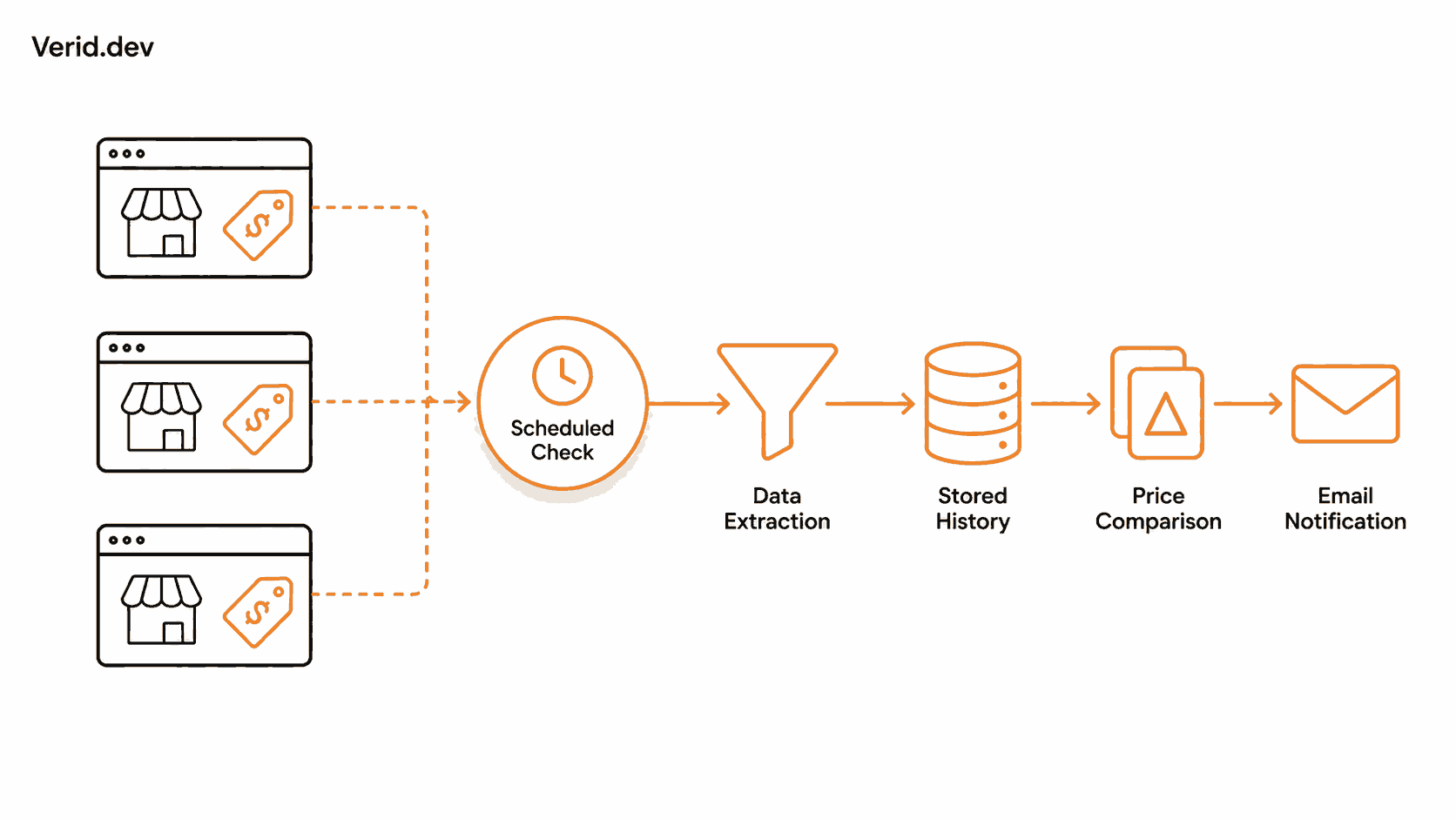
If you sell anything online, you already know the drill. Someone on your team opens a spreadsheet every Monday, visits three or four competitor product pages, copies down the current price, and updates a column. By Wednesday the data is stale, and by Friday nobody remembers to check at all. Meanwhile a competitor ran a flash sale at 2am on Tuesday and you found out from a customer who asked why you were $40 more expensive.
This article is a practical, no-fluff walkthrough of how to automate that entire process using Verid, a developer-first web change detection API. You do not need to write a scraper, rent a server, or hire a data team. You need a URL, a CSS selector, and about ten minutes. We will cover the dashboard workflow for non-developers, then the API and SDK workflow for teams who want this wired into their own systems.
What is competitor price tracking?
Competitor price tracking is the practice of regularly checking what other businesses charge for comparable products, then acting on that information, whether that means matching a price, holding your position, or investigating why a competitor can afford to sell for less. At its simplest it is one number on one page. At scale it becomes a stream of price, stock, and promotion data across every SKU that matters to your business.
The output businesses actually want is narrow: know the moment a tracked price changes, see the old value and the new value side by side, and get that information somewhere your team already looks, whether that is email, Slack, or an internal system.
Why manual tracking fails
Manual checks break down for three predictable reasons.
They are slow. A once-a-day glance at a competitor's page still leaves you blind for the other twenty-three hours, and flash sales rarely respect business hours.
They are shallow. Analysts check the handful of URLs they remember to check. The long tail of products nobody thinks to look at is exactly where quiet price erosion happens.
They are inconsistent. A tired human comparing $1,299 to $1,289 on a Friday afternoon is not a reliable data pipeline. Small differences get missed, and there is no audit trail of what the price actually was last Tuesday.
Buying an enterprise price intelligence platform solves the consistency problem but introduces new ones. Tools built for large retail catalogs, the kind aimed at teams tracking thousands of SKUs across marketplaces, tend to come with long onboarding cycles, per-seat pricing, and dashboards built for a pricing analyst rather than a developer who just wants a webhook. If your actual need is "tell me when this specific price changes," that is a lot of platform for a small job.
Why automate it?
Automation removes the human bottleneck from a task that is fundamentally mechanical: load a page, read a value, compare it to the last value, tell someone if it moved. A scheduled job does this identically every single time, at any hour, across as many product pages as you want to watch, without getting tired or skipping the URLs nobody remembers.
The harder part is what happens around that check: scheduling it reliably, storing the previous value somewhere durable, deciding what counts as a meaningful change versus noise, and delivering the alert somewhere useful without spamming your team. That is the part most DIY scraping scripts never quite finish, and it is the part a purpose-built change detection API is designed to handle.
How Verid solves this problem
Verid runs a five-stage loop on a schedule you define: fetch the page, extract the field you care about, diff it against the last successful run, evaluate a predicate you wrote, and deliver the result if that predicate returns true. You configure the loop once. Verid runs the infrastructure behind it, including a static fetch that automatically escalates to a headless browser and then a residential proxy if a site is JavaScript-heavy or blocks simple requests.
The part that matters most for pricing specifically is the predicate step. A screenshot-diffing tool fires on any pixel change, including a rotating banner ad or an updated timestamp, which trains your team to ignore alerts. Verid only fires when the rule you wrote is true, for example "price dropped by 5% or more," so every notification you get is one worth reading.
You define one monitor per product page, point it at the competitor's URL, tell Verid which element holds the price, and pick a check interval. There is no scraping pipeline to build, no headless browser cluster to babysit, and when a competitor redesigns their site and your selector breaks, Verid surfaces that as a visible extraction error rather than failing silently.
Choosing the best extraction method
Verid supports six ways to pull a value out of a page. For competitor price tracking, the choice usually comes down to how the target site is built.
| Method | Best for | Accuracy on price pages | When to use it |
|---|---|---|---|
| CSS selector | Rendered HTML with semantic class names | High, as long as the selector is specific | Default choice for most product pages |
| XPath | Complex or nested markup CSS cannot express | High | When you need parent or ancestor traversal that CSS selectors cannot do |
| JSONPath | JSON APIs a store exposes directly | Very high, returns clean numbers | When the site has a public product or cart API you can hit directly |
| Regex | Plain text bodies, sitemaps, raw responses | Medium, depends on pattern quality | Extracting a value from unstructured text or counting occurrences |
| Full-page hash | "Did anything change at all" monitoring | Low precision for pricing specifically | Rarely right for price tracking, better for detecting any update to a page |
| AI / LLM prompt | Pages that redesign often or resist selectors | High, and resilient to markup changes | Fallback when CSS selectors keep breaking, or the layout is inconsistent across competitor pages |
For most competitor price tracking, CSS selectors are the right starting point. Product pages almost always wrap the price in a predictable class like .product-price or a data attribute like [data-test=product-price], and Verid's CSS selector guide walks through finding one in your browser's DevTools in under a minute. Reach for the AI extraction method only when a competitor's site redesigns often enough that you are rewriting selectors every few weeks. LLM extractions do count against your plan's monthly quota, so it is a fallback rather than a default.
One caveat worth knowing before you build your first predicate: CSS-extracted prices usually come through with a currency symbol attached, like "$1,299.00", and Verid's own recipe documentation notes that a raw currency string can fail to parse as a number for percent-based predicates. If your percent-drop alert is not firing the way you expect, either strip the symbol downstream, pull the value from a JSON endpoint that already returns a clean number, or use AI extraction with a numeric schema so the field arrives pre-normalized. It is worth testing your first monitor's payload before assuming a percent predicate is doing exactly what you think.
Step-by-step dashboard tutorial
This section assumes you have never opened the Verid dashboard before. Sign up for free; no credit card is required, and the free plan includes five monitors.
Create monitor
From the dashboard, click New Monitor. Give it a name you will recognize later, something like "Competitor - Air Max 90 Price," and paste in the competitor's product page URL. For this walkthrough we will track Nike's Air Max 90 listing page (https://www.nike.com/t/air-max-90-shoes), the same product Verid's own documentation uses as a worked example for price-drop alerts.
Choose extraction method
Select CSS Selector as the extraction method. Open the competitor's page in your browser, right-click the price, choose Inspect, then right-click the highlighted element in DevTools and choose Copy → Copy selector. Paste that into the price field. Add a second field for the product title if you want it included in every alert, since it makes the notification readable at a glance without opening the page.
Your extraction config will look like this:
{
  "method": "css",
  "fields": {
    "price": "[data-test=product-price]",
    "title": "h1"
  }
}
Configure schedule
Set the check interval. On the free plan, the minimum interval is 24 hours, which is more than enough for most product categories that do not reprice multiple times a day. If you upgrade to a paid plan, shorter intervals unlock progressively: hourly checks on Starter, 15-minute checks on Pro, and down to 5-minute checks on Scale for genuinely volatile categories like electronics or flash-sale retail. Start on the daily interval and only tighten it if you find you are missing time-sensitive changes.
Configure deliveries
Choose how you want to be notified. For this walkthrough, select Email and enter the address that should receive the alert, for example a pricing analyst's inbox or a shared team address. Email is the simplest option because there is nothing to configure beyond an address, and it works for non-technical stakeholders who will never touch a dashboard.
If your team lives in Slack, you can swap in a Slack incoming webhook URL instead, and Verid will post a formatted before/after message directly to the channel. If you want to pipe the change into your own repricing system or internal tool, use a webhook delivery pointed at your own endpoint, which arrives as an HMAC-signed POST request you can verify before trusting the payload. Note that the free plan allows one delivery destination per monitor; paid tiers raise that to 3, 10, or 25 so a single price change can fan out to a webhook, a Slack channel, and an email address at once.
Save monitor
Before saving, set the predicate. This is the rule that decides whether an alert actually fires. For a price-drop alert, choose the "field decreases by percent" predicate, reference the price field, and set a threshold, for example 5 for a 5% drop. Click Save. Verid runs the monitor immediately to establish a baseline. This first run never sends a notification, since there is nothing to compare it against yet; every run after that compares against the previous one.
View history
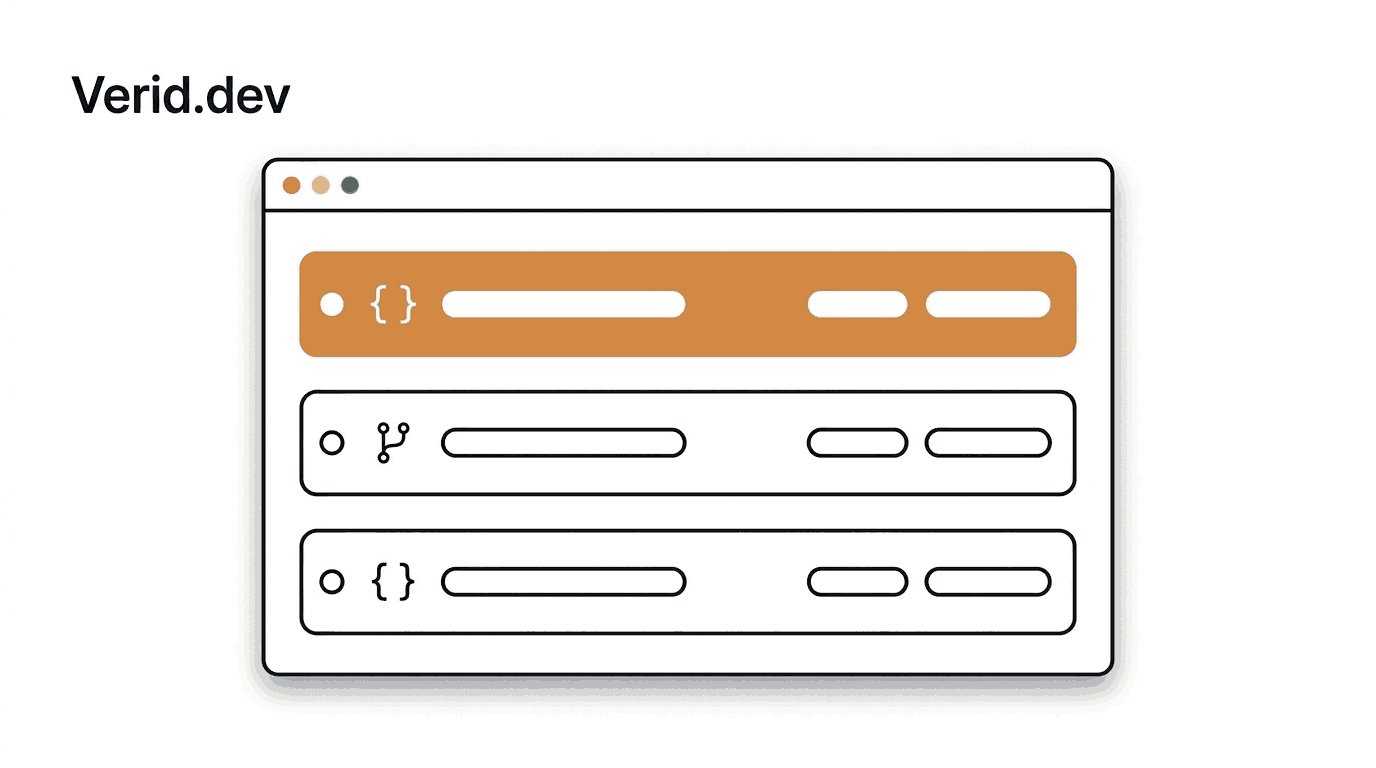
Every monitor has a run history showing each check, its timestamp, and whether it succeeded, failed, or was skipped. This is also where you will see extraction errors if a competitor changes their page layout and your selector stops matching, so you know to fix it with a one-line edit rather than silently losing data.
Understanding extracted results
Each run stores the raw extracted value for every field you defined, plus a diff against the previous run listing exactly which fields changed and their before and after values. This is the core difference between Verid and a screenshot-diffing tool: you are not staring at two images trying to spot what moved, you get a structured record that says price went from $1,299.00 to $1,199.00.
How to receive alerts
Once the predicate fires, the delivery you configured goes out automatically. An email delivery arrives as a plain, readable summary with the change already spelled out, so a non-technical stakeholder does not need to log into anything to understand what happened. If a delivery fails for any reason, such as a temporary server issue on your webhook endpoint, Verid retries automatically up to six times with exponential backoff before marking it dead and logging it in your dashboard for manual replay.
Real-world use case
Let's put the whole loop together for tracking a competitor's price on a specific SKU.
Dashboard workflow
Using the steps above: create a monitor pointed at https://www.nike.com/t/air-max-90-shoes, extract the price and title fields with CSS selectors, set the schedule to a 24-hour interval, set the predicate to fire when price drops by 5% or more, and deliver to your pricing team's email address. Save it, and you are done. No code, no server, no maintenance beyond the occasional selector fix if the site redesigns.
API workflow
The same monitor can be created with a single API call, which is useful if you are provisioning monitors programmatically for a whole product catalog rather than clicking through the dashboard one SKU at a time.
curl -X POST https://api.verid.dev/v1/monitors \
  -H "Authorization: Bearer $VERID_API_KEY" \
  -H "Content-Type: application/json" \
  -d '{
    "name": "Competitor - Nike Air Max 90",
    "url": "https://www.nike.com/t/air-max-90-shoes",
    "schedule_interval_seconds": 86400,
    "extract_config": {
      "method": "css",
      "fields": {
        "price": "[data-test=product-price]",
        "title": "h1"
      }
    },
    "diff_predicate": {
      "type": "field_decreases_by_percent",
      "field": "price",
      "threshold": 5
    },
    "deliveries": [
      { "type": "email", "to": "pricing@yourcompany.com" }
    ]
  }'
schedule_interval_seconds is set to 86400, which is the 24-hour minimum the free plan allows. If your account is on Starter, Pro, or Scale, you can lower this value down to 3600, 900, or 300 seconds respectively for faster detection on volatile SKUs, per the tier limits in the API reference.
When the predicate fires, your delivery destination receives a payload shaped like this:
{
  "id": "del_01H...",
  "version": "2026-05-01",
  "monitor_id": "9b1c...",
  "run_id": "7e2a...",
  "fired_at": "2026-05-08T12:00:00Z",
  "diff": {
    "fields_changed": ["price"],
    "before": { "price": "$1,299.00", "title": "Nike Air Max 90" },
    "after": { "price": "$1,199.00", "title": "Nike Air Max 90" }
  },
  "monitor": {
    "url": "https://www.nike.com/t/air-max-90-shoes",
    "name": "Competitor - Nike Air Max 90"
  }
}
If you chose a webhook delivery instead of email, verify the Verid-Signature header before trusting the payload. Verid signs every webhook with HMAC-SHA256 in the same format Stripe and Svix use, so if you have verified a Stripe webhook before, the pattern will look familiar.
SDK workflow
For teams working in Node.js or TypeScript, the official SDK wraps the same API without hand-writing HTTP requests.
npm install @verid.dev/sdkimport { VeridClient } from '@verid.dev/sdk';
const client = new VeridClient({
apiKey: process.env.VERID_API_KEY!,
});
const monitor = await client.monitors.create({
name: 'Competitor - Nike Air Max 90',
url: 'https://www.nike.com/t/air-max-90-shoes',
schedule_interval_seconds: 86400,
extract_config: {
method: 'css',
fields: {
price: '[data-test=product-price]',
title: 'h1',
},
},
diff_predicate: {
type: 'field_decreases_by_percent',
field: 'price',
threshold: 5,
},
deliveries: [
{ type: 'email', to: 'pricing@yourcompany.com' },
],
});
// List every monitor on your account
const { data } = await client.monitors.list();
// Force an immediate check instead of waiting for the schedule
await client.monitors.runNow(monitor.id);This is the same pattern you would use to spin up one monitor per SKU across an entire competitor catalog, looping over a list of product URLs and calling client.monitors.create() for each one.
Where visual monitoring fits in
Everything above assumes the price lives in a field you can point a selector at. Most of the time it does. Sometimes it doesn't.
A "20% off, ends tonight" banner stacked over the price, a strikethrough on the old number rendered as an image instead of text, a competitor quietly redesigning their entire pricing table before you've had a chance to rewrite the selector: none of that shows up cleanly as a single extracted field. That's the gap visual monitoring covers. Instead of reading a value, it screenshots the page on every check and compares it pixel by pixel against the last run, flagging exactly what changed.
It isn't a replacement for the structured monitor you just built. It's a second signal on the same monitor. The price predicate still fires on the exact rule you set, "alert if price drops more than 5%," and now runs alongside a visual layer that catches everything a clean field can't represent: a promo strip that appeared, a layout that shifted, a redesign that's about to break your selector before it actually breaks it.
How it applies to competitor price tracking specifically:
- Promo banners and sale badges. A competitor running a flash sale often communicates it through a banner or badge, not a change to the underlying price field. A region scoped to the top of the product page catches that even when the
pricefield itself hasn't moved. - Early warning on selector breakage. When a competitor redesigns their pricing or product page, your CSS selector can go quiet before you notice the extraction error in your run history. A visual diff on the same page flags the layout change immediately, so you catch the redesign instead of catching a string of failed runs later.
- Proof for non-technical stakeholders. A pricing analyst who doesn't read JSON payloads can look at a before-and-after screenshot and immediately see what changed. It's the same alert, with a picture attached instead of just numbers.
Setting it up: on the monitor you already created for the price field, turn on visual capture. Click a region on the rendered screenshot, the price block, a hero banner, the top of the page, whatever area is actually meaningful, so the comparison ignores everything outside it. Add ignore selectors for anything that always changes and would otherwise cause noise, like a rotating carousel or a live visitor counter. Set a change threshold (1%, 5%, 10%, or custom) so the alert only fires once a real portion of that region has changed, not a single stray pixel.
The two signals stay independent. The price predicate fires on the rule you wrote. The visual layer fires on its own pixel threshold. A single run can trigger one, both, or neither, and each delivery tells you which one fired.
The free plan includes one visual monitor with a screenshot history, no separate signup needed. If you're already tracking a competitor's price with a structured monitor, turning on visual capture on that same monitor is the fastest way to see both signals without managing two separate setups.
Best practices
Build one monitor per SKU, not one per store. Tier limits in Verid are per-monitor, and per-SKU monitors give you clean diffs and clean notifications instead of one noisy monitor covering an entire product listing page.
Track more than just price. Adding a title and availability field alongside price costs nothing extra and gives every alert context, so you are not left wondering which product moved or whether it is even still in stock.
Start with a daily schedule and tighten it only when needed. A 24-hour interval is enough for most categories. Reserve hourly or 15-minute checks for genuinely volatile SKUs where a same-day reaction actually matters to your margin.
Test your predicate against a real payload before trusting it. Look at the raw extracted value in your run history and confirm it parses the way your predicate expects, especially for percent-based thresholds on prices that include currency symbols.
Use fetch mode browser for JavaScript-heavy storefronts. If your selector is correct in DevTools but the extracted field keeps coming back empty, the price is likely rendered client-side after the initial page load, and switching fetch_mode from auto to browser resolves it.
Common mistakes
Setting a percent-drop predicate against a raw currency string and then wondering why it never fires. "$1,299.00" can fail to parse as a number depending on formatting. Strip the symbol downstream, source the field from a JSON endpoint, or normalize it through AI extraction with a numeric schema.
Expecting a notification on the very first run. The first run of any monitor only establishes a baseline. There is nothing to diff against yet, so nothing fires until the second run onward.
Watching the entire store instead of individual product pages. A monitor pointed at a category listing page will fire on every layout change, sort order shift, and unrelated product swap. Point each monitor at one specific product URL.
Ignoring extraction errors in the run history. When a competitor redesigns their site, your CSS selector can silently stop matching. Verid surfaces this as an error in your dashboard, but only if you check it, or better, if you pair email alerts with periodic review of your monitor list.
Picking full-page hash for price tracking. It only tells you that something on the page changed, not what, which brings back the exact alert fatigue problem manual and screenshot-based tracking already has.
Conclusion
Competitor price tracking is a mechanical problem wearing a strategic hat. The value is in reacting fast to a price move, not in the act of checking a page. Manual checks cannot keep pace with how often prices actually change, and enterprise pricing intelligence platforms are often more infrastructure than a small or mid-sized team needs for the simple job of "tell me when this number changes."
Verid sits in between: point it at a URL, tell it what to extract, define the rule that matters to you, and let it run. Five monitors are free forever, with no credit card required, so the fastest way to see whether this fits your workflow is to set up your first monitor against a competitor's product page today.
Frequently Asked Questions
How often should I check a competitor's price?
It depends on how often that category actually moves. Most product pages do not need more than a daily check, which is what Verid's free plan provides. Categories known for flash sales or dynamic pricing, like electronics or marketplace-style listings, benefit from hourly or 15-minute checks available on paid plans.
Is it legal to track a competitor's prices?
Monitoring publicly available pricing information that anyone can see by visiting the page is standard practice across ecommerce. It becomes a legal or ethical problem only if you attempt to bypass authentication, scrape data behind a login, or otherwise access information that was never public. This article is not legal advice; check your specific situation with counsel if you are unsure.
Can I track competitor prices without writing any code?
Yes. The dashboard workflow in this article covers the entire process, from pasting a URL to receiving an email alert, without touching the API or SDK. The API and SDK exist for teams who want to provision monitors programmatically across a large catalog.
What happens if a competitor redesigns their website and my selector breaks?
Verid surfaces the failed extraction as an error in your monitor's run history rather than failing silently or sending a false alert. You fix it with a one-line edit to the CSS selector, or switch that specific monitor to AI extraction if the site's layout has become unpredictable.
Do I need a separate monitor for visual monitoring, or can I add it to the price monitor I already built?
Same monitor. Visual capture is a layer you enable on top of whatever extraction method the monitor already uses, not a second monitor you have to create and maintain. Each run then produces both the extracted price field and a screenshot diff, evaluated against their own independent conditions.
Want this running on your own URL? Spin up the same monitor in about a minute. 5 free, no credit card.
About the author

Software Engineer & Technical Writer
A software engineer and technical writer, Hanzala works on Verid’s API surface and everything written about it. His posts cover website change detection, scraping trade-offs, and integrating monitoring alerts into an existing stack.
More from HANZALA SALEEM →Related use cases
How to Track Competitor Tech Stack Changes Automatically
Learn how to detect when competitors change their tech stack, update their tools, or ship new features using Verid's web change detection API.
View blueprint →Competitor AnalysisHow to Detect SEO Title and Meta Description Drift Using Verid
Learn how to detect SEO title and meta description drift automatically using Verid. Monitor metadata changes across your site and get instant alerts before rankings drop.
View blueprint →Competitor AnalysisHow to Monitor SaaS Competitor Pricing Changes Automatically
Learn how to monitor SaaS competitor pricing pages automatically with Verid. Get instant alerts when plans, prices, or features change - no manual checks needed.
View blueprint →