How to Monitor Job Listings for Keywords and Get Instant Alerts
Learn how to set up automated job listing alerts with Verid. Get notified the moment new jobs matching your keywords appear - no coding required.
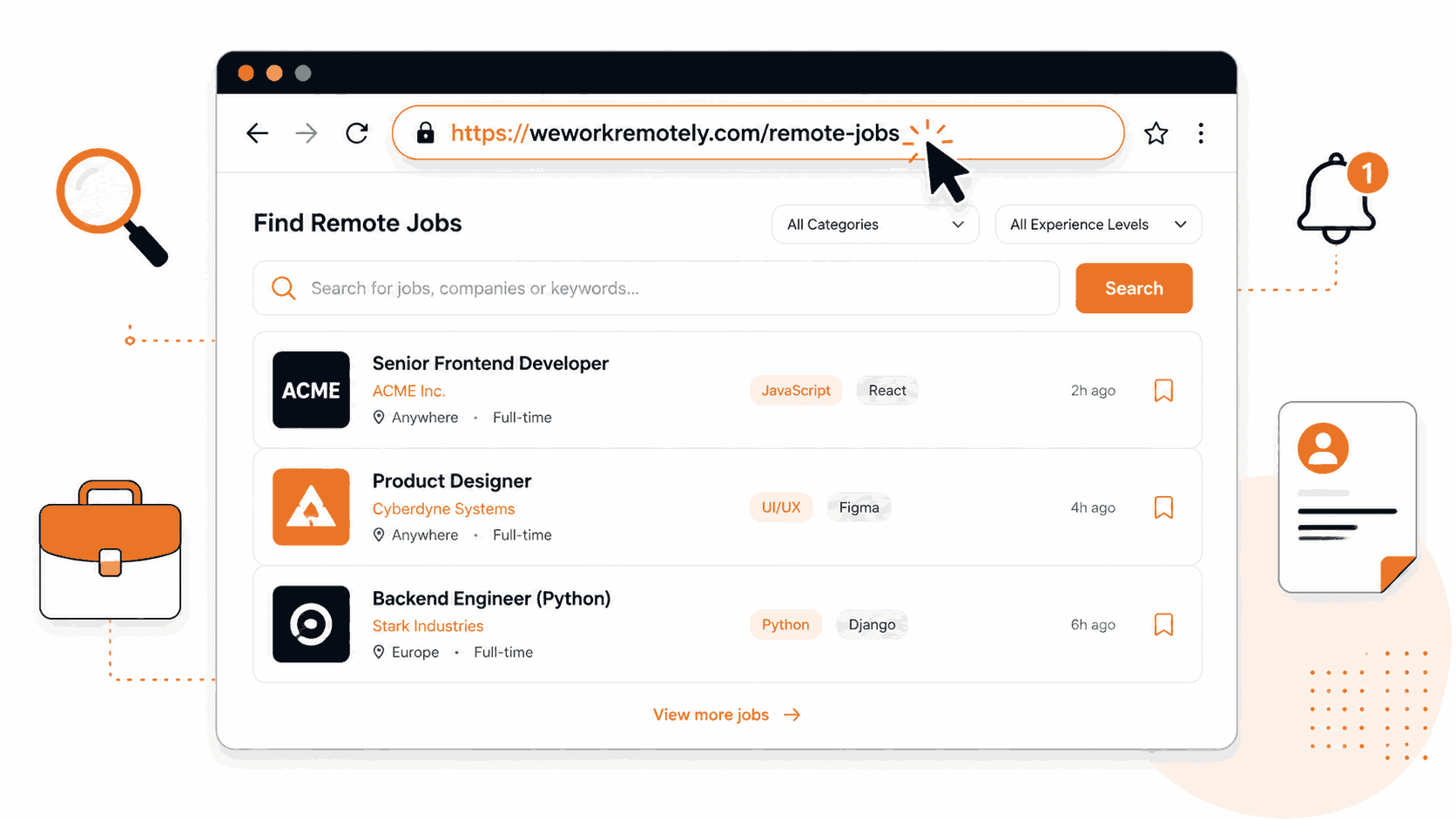
Searching for a new job should not mean refreshing the same pages every morning. Whether you are looking for a remote frontend role, a product manager position at a startup, or any niche opportunity, the best listings often fill fast. By the time you check manually, the window may have closed.
This guide shows you how to use Verid to automate job listing monitoring. You will set up a monitor that watches your target job boards and sends you an alert the moment a new listing appears that matches your keywords no code required for the basic setup, with a developer path available for those who want full automation.
Why Manual Job Searching Falls Short
Most people approach the job hunt the same way: bookmark a few job boards, search for keywords every day, and hope they catch something fresh. The problems with this approach are real:
- Popular job posts receive hundreds of applications within hours of going live. Applying on day three puts you at a structural disadvantage.
- Job search automation through alerts built into the platforms themselves is often limited, delayed, or buried under recruiter noise.
- Tracking multiple sites LinkedIn Jobs, Indeed, We Work Remotely, Remote OK manually across different tabs is genuinely time-consuming.
Automated job tracking with a tool like Verid removes the daily manual effort. You define what you are looking for once, and Verid handles the monitoring. When a match appears, you get a notification.
Method 1: Using the Verid Dashboard (No Code Required)
This is the best starting point for anyone who wants to set up keyword-based job alerts without writing a single line of code. The Verid dashboard walks you through every setting visually.
Step 1: Sign Up and Choose a Job Website to Monitor
Go to verid.dev and start a 14-day free trial. No credit card is required. The trial gives you unlimited monitors and 200 runs, which is a reasonable way to test personal job searching (a search checked daily uses about 14 runs over the trial, or about 30 runs a month).
Next, decide which job board to monitor. Good choices for keyword-based job monitoring include:
- We Work Remotely: https://weworkremotely.com/remote-jobs/search?term=your+keyword dedicated remote job board with clean listing pages
- Remote OK: https://remoteok.com/remote-jobs?tags=react tag-based remote job listings, easy to target specific roles
- Indeed: https://www.indeed.com/jobs?q=product+manager&l=remote large volume of listings, searchable by keyword and location
For this walkthrough, we will use We Work Remotely as the example. Navigate to the site, search for your keyword (for example, "React developer"), and copy the resulting search URL. That URL is what you will give to Verid.
Step 2: Create a Monitor in the Dashboard
After signing in, open your Verid dashboard and click New Monitor. You will be asked to fill in a few fields:
- Monitor name: give it a descriptive label, for example:
WWR - React Developer Jobs - URL: paste the job search URL you copied, for example:
https://weworkremotely.com/remote-jobs/search?term=react+developer - Schedule interval: set this to 86400 seconds (24 hours). This checks the page once per day and uses about 30 runs a month. Every plan, and the free trial, can go as low as 60 seconds, but faster checks use more runs; the Starter plan ($19/mo) gives you 5,000 runs a month, enough for about 6 searches checked hourly.
Step 3: ,t Extraction Method
This is the most important configuration decision. Verid supports six extraction methods. Here is how they compare for job listing monitoring:
| Method | Best for | Effort for non-developers |
|---|---|---|
| CSS Selector | Job boards with consistent HTML structure | Medium — requires browser DevTools |
| AI / LLM Prompt | Any job board, especially complex or changing layouts | Easy — write plain English |
| Full-page Hash | "Alert me if anything on this page changes" | Very easy — no selector needed |
| Regex | Counting new listings in raw HTML | Technical |
| XPath | Complex DOM traversal | Technical |
| JSONPath | Job boards that expose a JSON API | Technical |
For non-developers, the two practical options are:
Option A: AI Extraction (Easiest)
This is the recommended starting point if you do not want to inspect page code. In the extraction config, select AI / LLM Prompt and describe in plain English what you want to track:
Extract the total number of job listings visible on this page and the titles of the first five listings.You can also provide an optional schema to keep the output consistent:
{
  "listing_count": "number",
  "top_titles": "string"
}
Verid sends the page content to an LLM, which extracts the fields you described. It caches results for 30 days, so you only consume LLM quota when the page content actually changes. The free trial includes 50 LLM extractions, and paid plans include 250 or more a month.
Option B: CSS Selector (More Precise)
If you want to track specific elements, for example, the count of listings matching a keyword, a CSS selector gives you a direct, reliable anchor. On We Work Remotely, each job listing is wrapped in a consistent list element. In your browser, right-click a listing and choose "Inspect" to find the selector. You might end up with something like section.jobs li to count matching rows.
CSS selectors are explained in depth in the Verid CSS extraction guide.
Option C: Full-page Hash (Simplest possible)
If you just want to know whether the page changed at all, for low-volume niche boards, select Full-page hash. Verid hashes the entire rendered page and fires an alert when it changes. The trade-off is noise: the alert fires on any change, including timestamps or sidebar updates, not just new job listings.
For most job searchers, AI extraction is the best choice. It requires no technical knowledge, survives layout changes on the job board, and produces meaningful structured output.
Step 4: Configure the Predicate (When to Alert)
The predicate tells Verid when to actually fire a notification. Without a predicate, Verid checks the page but stays quiet unless your rule is met.
For job monitoring, a practical predicate is:
field_changesonlisting_countfires whenever the number of visible listings increases or changes. This covers new postings appearing.any_field_changesfires when any extracted field changes, a good fallback if your schema is simple.
In the dashboard, select Field Changes and enter the field name you used in your extraction schema (for example, listing_count).
Step 5: Set Up Email Notifications
In the Deliveries section, click Add Delivery and choose Email. Enter your email address. That is all, Verid will send you a plain, readable summary of what changed the next time the predicate fires.
Email is the right choice for most job seekers because:
- No additional tools or accounts required
- Readable on any device
- Arrives in your inbox alongside other job correspondence
You can always add a second delivery channel later. The free trial supports 1 delivery endpoint per monitor.
Once you save the monitor, Verid begins its first check on the next scheduled run. When the page changes in a way that matches your predicate, you receive an email alert with the before and after values.
Method 2: Using the Verid API
Developers who want to automate job monitoring at scale, integrate alerts into their own applications, or manage monitors programmatically can use the Verid REST API.
Get Your API Key
Sign into the Verid dashboard and navigate to API Keys. Create a new key it will start with the prefix vrd_. Store it securely; treat it like a password.
export VERID_API_KEY="vrd_your_key_here"Create a Job Monitor via API
The following curl command creates a monitor that watches the We Work Remotely React developer search page daily and alerts you by email when the AI-extracted listing count changes:
curl -X POST https://api.verid.dev/v1/monitors \
  -H "Authorization: Bearer $VERID_API_KEY" \
  -H "Content-Type: application/json" \
  -d '{
    "name": "WWR - React Developer Jobs",
    "url": "https://weworkremotely.com/remote-jobs/search?term=react+developer",
    "schedule_interval_seconds": 86400,
    "extract_config": {
      "method": "prompt",
      "prompt": "Count the number of job listings on this page and extract the titles of the first five listings.",
      "schema": {
        "listing_count": "number",
        "top_titles": "string"
      }
    },
    "diff_predicate": {
      "type": "field_changes",
      "field": "listing_count"
    },
    "deliveries": [
      {
        "type": "email",
        "to": "you@example.com"
      }
    ]
  }'
Replace you@example.com with your actual email address. You can also swap the delivery type to webhook and point it at your own endpoint, or add a slack delivery with your Slack incoming webhook URL.
Trigger a Manual Run
To test your monitor immediately without waiting for the schedule:
curl -X POST https://api.verid.dev/v1/monitors/{monitor_id}/run \
  -H "Authorization: Bearer $VERID_API_KEY" \
  -H "Content-Type: application/json" \
  -d '{}'
Replace {monitor_id} with the id returned when you created the monitor. Manual runs have no daily cap; each one uses one run from your monthly allowance.
Monitor Multiple Job Boards
You can create separate monitors for each job board you want to track. For example, to also watch Remote OK for product manager roles:
curl -X POST https://api.verid.dev/v1/monitors \
  -H "Authorization: Bearer $VERID_API_KEY" \
  -H "Content-Type: application/json" \
  -d '{
    "name": "Remote OK - Product Manager",
    "url": "https://remoteok.com/remote-product-manager-jobs",
    "schedule_interval_seconds": 86400,
    "extract_config": {
      "method": "prompt",
      "prompt": "Count the number of job listings visible on this page.",
      "schema": {
        "listing_count": "number"
      }
    },
    "diff_predicate": {
      "type": "field_changes",
      "field": "listing_count"
    },
    "deliveries": [
      {
        "type": "email",
        "to": "you@example.com"
      }
    ]
  }'
Monitors are unlimited on every plan and during the free trial. The Starter plan gives you 5,000 runs a month for $19/month, practical if you are tracking multiple job titles or boards simultaneously.
Method 3: Using the Official Node.js SDK
Verid publishes an official Node.js SDK on npm. This is the cleanest way to integrate job monitoring into a Node or TypeScript project.
Installation
npm install @verid.dev/sdkCreate a Job Monitor with the SDK
import { VeridClient } from '@verid.dev/sdk';

const client = new VeridClient({
  apiKey: process.env.VERID_API_KEY!,
});

const monitor = await client.monitors.create({
  name: 'WWR - React Developer Jobs',
  url: 'https://weworkremotely.com/remote-jobs/search?term=react+developer',
  schedule_interval_seconds: 86400,
  extract_config: {
    method: 'prompt',
    prompt:
      'Count the number of job listings on this page and extract the titles of the first five listings.',
    schema: {
      listing_count: 'number',
      top_titles: 'string',
    },
  },
  diff_predicate: {
    type: 'field_changes',
    field: 'listing_count',
  },
  deliveries: [
    {
      type: 'email',
      to: 'you@example.com',
    },
  ],
});

console.log('Monitor created:', monitor.id);

// Trigger an immediate check
await client.monitors.runNow(monitor.id);
Replace you@example.com with your actual email address. This script can be run as a one-time setup step after creation. Verid runs the monitor on its schedule automatically.
List Your Active Monitors
const { data } = await client.monitors.list();
data.forEach((m) => console.log(m.name, m.status, m.last_run_at));
Notifications and Automation
Verid supports four delivery channels. Here is how each fits into a job search workflow:
The simplest option. Every time the predicate fires, you receive a summary of what changed, the before and after values of the fields you are tracking. No setup beyond entering your email address. Ideal for personal job searching.
Slack
If you are managing job tracking for a team, a recruiting team, or a group of people searching together, Slack delivery drops the alert directly into a channel. In the dashboard, add a delivery of type Slack and paste your Slack incoming webhook URL. The alert will appear as a message with the field changes clearly labeled.
Webhooks
Webhooks let you connect Verid to any downstream system. When a job listing predicate fires, Verid sends a signed POST request to your endpoint with the full diff payload. You can use this to:
- Pipe new job alerts into a database
- Trigger a further scraping job to collect full listing details
- Connect to tools like Make or Zapier to fan out notifications to multiple channels
Every webhook from Verid is HMAC-signed using your monitor's secret, and Verid retries up to 6 times with exponential backoff if your endpoint is temporarily unavailable. See the Webhooks documentation for signature verification examples in Node.js, Python, Ruby, Go, and PHP.
Discord
For developer communities or groups running a shared job alerts server, Discord delivery works the same way as Slack. Paste your Discord webhook URL and Verid routes alerts to the channel of your choice.
Practical Tips for Job Monitoring
- Use specific search URLs. Instead of monitoring a homepage, monitor a URL with your keyword already applied, for example,
https://weworkremotely.com/remote-jobs/search?term=react+developer. This keeps the extracted listing count relevant to your actual search. - Start with the free trial. The 14-day trial's 200 runs cover about 14 distinct job searches checked daily: different keywords, different boards, or different locations. It is enough to validate whether automated job alerts are useful for your search before choosing a plan. After that, Lite ($9/month, 1,000 runs) covers about 30 searches checked daily.
- Upgrade for more runs. Daily monitoring is sufficient for most job searches. If you are applying to high-competition roles where speed matters, check more often: an hourly search uses about 720 runs a month, so the Starter plan ($19/month, 5,000 runs) covers about 6 hourly searches. The Pro plan ($49/month, 15,000 runs) covers about 5 searches checked every 15 minutes.
- Monitor multiple boards in parallel. Monitors are unlimited on every plan. You can watch LinkedIn Jobs, Indeed, We Work Remotely, and Remote OK simultaneously for the same or different keywords.
- Review your AI extraction quota. The free trial includes 50 LLM extractions (Lite includes 250 a month). Since extractions are only counted on cache misses (when the page actually changes), 50 calls goes further than it sounds for daily-checked pages.
Frequently Asked Questions
Can I receive an alert only when a new job matches my keyword?
Yes. When you configure your monitor with a job search URL that already filters by keyword, for example, a We Work Remotely, or Remote OK search URL with your keyword in the query string, the page Verid monitors only contains listings matching that keyword. When new listings appear, the extracted field count changes, and Verid fires your alert.
How often can Verid check a job website?
Every plan, and the free trial, can check as often as every 60 seconds. Plans differ by runs per month: the Lite plan ($9/month) includes 1,000, the Starter plan ($19/month) 5,000, the Pro plan ($49/month) 15,000, and the Scale plan ($149/month) 100,000. The 14-day free trial includes 200 runs in total. A search checked daily uses about 30 runs a month, and hourly about 720. See the full pricing comparison for details.
What is the best extraction method for job listings?
For most users, AI extraction (the prompt method) is the best choice. It works on any job board layout without needing to understand HTML structure, produces structured output you can reference in predicates, and survives page redesigns. CSS selectors are faster and do not consume LLM quota, but require you to identify the right selector using browser DevTools. Full-page hash is the simplest option if you just want to know whether anything on the page changed.
Can I connect job alerts to Slack or a webhook?
Yes. Verid supports four delivery channels: email, Slack, Discord, and webhooks. You can configure any combination of these on a single monitor, up to the per-monitor delivery limit of your plan (1 during the free trial, 2 on Lite, 3 on Starter, 10 on Pro, 25 on Scale). Webhooks let you integrate job alerts with external tools like Make, Zapier, or your own application. See Verid's notification documentation for setup details.
Want this running on your own URL? Spin up the same monitor in about a minute. 5 free, no credit card.
About the author

Software Engineer & Technical Writer
A software engineer and technical writer, Hanzala focuses on developer experience at Verid: SDKs, API reference, and step-by-step guides. He writes about change detection, scheduling, and alert design for teams automating web data.
More from HANZALA SALEEM →Related use cases
How to Automatically Track Scholarship and Grant Deadlines with Verid (No Coding Needed)
Stop refreshing scholarship pages by hand. See how Verid automatically tracks deadlines and emails you the moment one changes.
View blueprint →Research & NicheAcademic Journal and Paper Update Alerts
Get instant alerts when new papers publish in academic journals or on arXiv. Set up automated monitoring with Verid on a 14-day free trial, no coding required.
View blueprint →Research & NicheHow to Monitor Appointment Slot Availability and Never Miss a Booking Again
Stop manually refreshing booking pages. Use Verid to monitor appointment slot availability and get instant alerts when a slot opens up.
View blueprint →