How to Detect New URLs in Sitemap.xml Automatically (Without Writing a Scraper)
Learn how to monitor sitemap.xml for new URLs using Verid. Get instant email or webhook alerts when competitors or websites publish new pages.
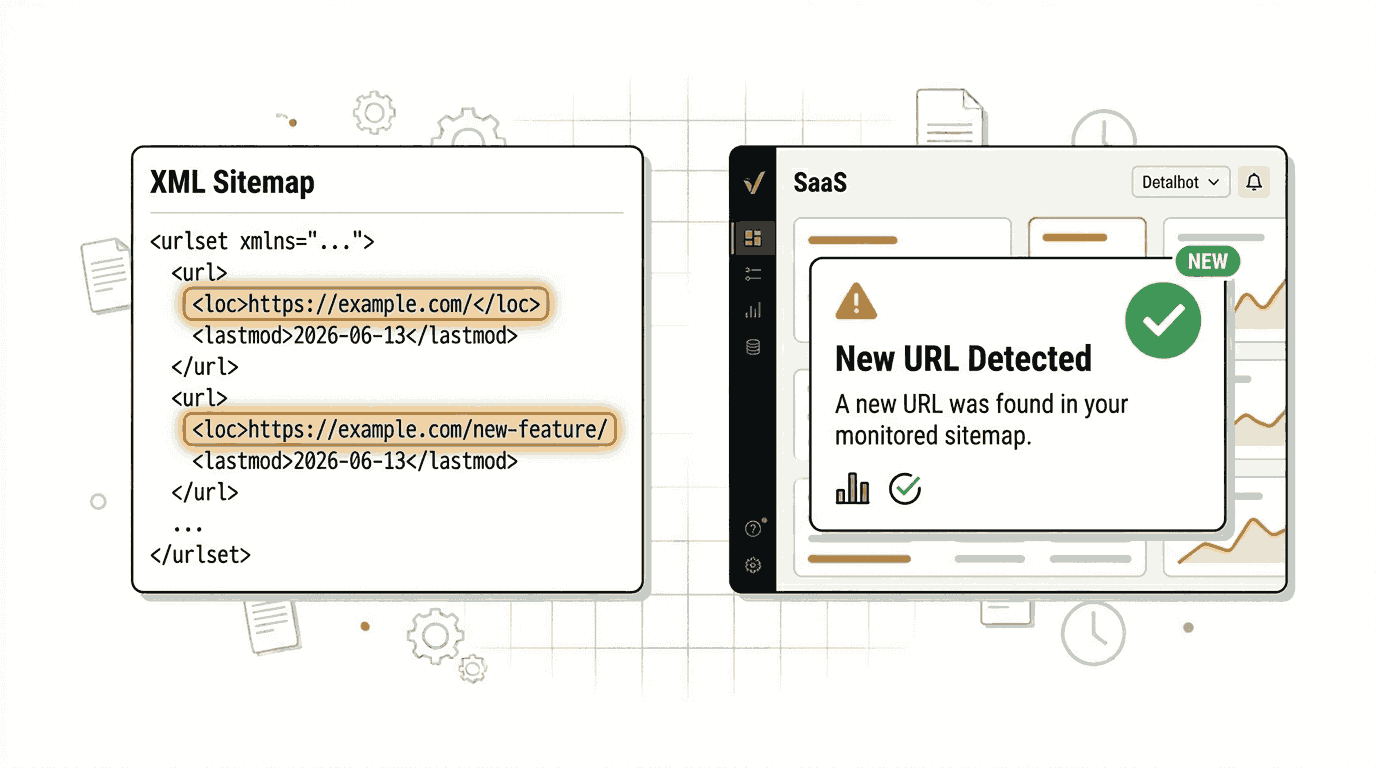
Every day, companies publish new blog posts, product pages, and landing pages. If you are tracking a competitor, monitoring a news source, or keeping an eye on your own website, finding out about those new pages quickly matters.
The problem is that checking sitemap.xml files manually is slow, boring, and easy to forget. You open the file, scroll through hundreds of URLs, try to remember what was there yesterday, and give up.
There is a better way. You can set up an automated monitor that checks a sitemap for you on a schedule and sends you an alert the moment a new URL appears. This guide shows you how to do exactly that using Verid, a developer-first web change detection API.
What Is a Sitemap.xml File?
A sitemap.xml is a simple file that website owners publish to help search engines find all the pages on their site. It is a list of URLs written in a structured XML format.
Here is what a basic sitemap looks like:
<?xml version="1.0" encoding="UTF-8"?>
<urlset xmlns="http://www.sitemaps.org/schemas/sitemap/0.9">
  <url>
    <loc>https://www.example.com/blog/post-one</loc>
    <lastmod>2025-06-01</lastmod>
  </url>
  <url>
    <loc>https://www.example.com/blog/post-two</loc>
    <lastmod>2025-06-08</lastmod>
  </url>
</urlset>
Each <loc> tag contains a URL. When a website adds a new page, a new <loc> entry appears in the sitemap. That is the signal we want to catch.
Most websites place their sitemap at /sitemap.xml or link to it from their robots.txt file. Large sites sometimes use sitemap index files that link to multiple smaller sitemaps organized by content type.
Why Detecting New Sitemap URLs Matters
Tracking new sitemap entries is useful for a wide range of people:
- SEO professionals want to know when a competitor publishes new content so they can respond quickly.
- Content teams track editorial calendars across competing publications.
- Researchers and analysts need to know when government agencies, regulatory bodies, or academic publishers release new documents.
- Developers monitor their own production sitemaps to confirm that new pages were correctly added and indexed.
- Business intelligence teams watch competitor product pages for signs of new feature launches or market expansions.
Manually refreshing a sitemap file once a day is not realistic. Automated sitemap monitoring solves this entirely.
How to Detect New Sitemap URLs Using the Verid Dashboard
Verid lets you set up a sitemap monitor through a simple dashboard. No code is required for this step. Here is the complete walkthrough.
Step 1: Sign Up and Get Your API Key
Go to verid.dev and start a 14-day free trial. No credit card is required. The trial gives you unlimited monitors and 200 runs.
Once inside the dashboard, navigate to the API Keys page and create a new key. Your key will start with the prefix vrd_. Keep it safe like a password.
Step 2: Create a New Monitor
Inside the dashboard, click Create Monitor. Fill in the following fields:
- Monitor Name: Give it a descriptive name like "The Verge Sitemap Monitor" so you can identify it later.
- URL: Enter the full sitemap URL you want to track, such as
https://www.theverge.com/sitemap_index.xml.
Step 3: Choose the Extraction Method
For sitemap.xml files, the correct extraction method is Regex.
Sitemap files are plain XML text. The Regex extractor in Verid runs a pattern against the raw response body and counts how many times it matches. For sitemaps, you want to count the number of <loc> tags. When that count goes up, it means new URLs were added.
Set the field configuration like this:
- Field name:
url_count - Pattern:
<loc>
Verid will count every occurrence of <loc> in the sitemap and store that number. See the Verid extraction methods documentation for more detail on how regex extraction works.
Step 4: Configure the Predicate
The predicate tells Verid when to send an alert. For sitemap monitoring, you want an alert when the URL count increases by at least 1.
Choose:
- Predicate type:
field_increases_by_absolute - Field:
url_count - Threshold:
1
This means you will only receive a notification when at least one new URL has been added. If nothing changes, you will not receive any alerts.
Step 5: Set the Schedule
A 24-hour interval (86,400 seconds) means Verid will check the sitemap once per day. That uses about 14 runs over the 14-day free trial and about 30 runs a month after it, well inside Lite's 1,000 ($9/month).
Every plan, and the free trial, can check as often as every minute. If you need more frequent checks than Lite ($9/mo, 1,000 runs a month) covers, larger plans add more monthly runs:
- Starter ($19/mo): 5,000 runs a month (about 6 sitemaps checked hourly)
- Pro ($49/mo): 15,000 runs a month (about 20 sitemaps checked hourly)
- Scale ($149/mo): 100,000 runs a month (about 138 sitemaps checked hourly)
For most use cases, daily monitoring is sufficient. Set the schedule to Every 24 hours.
Step 6: Configure Email Delivery
Under the Deliveries section, select Email and enter your email address. Verid will send you a plain, readable summary whenever the sitemap URL count increases.
You can also add webhook, Slack, or Discord delivery in this section. The free trial supports one delivery per monitor. Paid plans support multiple delivery channels per monitor.
Click Save Monitor to activate it.
Choosing the Right Extraction Method for Sitemap Monitoring
Verid offers six extraction methods: CSS, XPath, JSONPath, Regex, Full-Page Hash, and AI/LLM. For sitemap.xml files, two methods are worth considering.
| Method | How It Works | Good For Sitemaps? | Notes |
|---|---|---|---|
| Regex | Counts pattern occurrences in raw text | Yes, recommended | Counts <loc> tags directly, simple and reliable |
| Full-Page Hash | Hashes the entire page response | Partially | Fires on any change, including formatting or whitespace changes |
| XPath | Navigates the XML tree to extract values | Possible | More complex setup, better for extracting specific URL values |
| CSS Selector | Targets HTML elements | No | Sitemaps are XML, not rendered HTML |
| JSONPath | Reads JSON API responses | No | Sitemaps are XML, not JSON |
| AI/LLM | Describes fields in plain English | Overkill | Works but uses your monthly LLM quota unnecessarily |
Recommendation: Use Regex.
The Regex extractor is the simplest and most direct approach for sitemap monitoring. You give it the pattern <loc> and it returns the count. Pair it with the field_increases_by_absolute predicate and you have a reliable new-URL detector.
Full-Page Hash is a fallback option if you want to catch any change at all, but it will fire on minor formatting changes or whitespace differences, creating unnecessary noise.
Real-World Sitemap Monitoring Examples
Here are real, publicly available sitemaps you can use to test your monitor:
Cloudflare Blog
https://blog.cloudflare.com/sitemap.xmlCloudflare publishes technical blog posts and security reports. Monitoring this sitemap can alert you to new infrastructure announcements.
MDN Web Docs
https://developer.mozilla.org/sitemap.xmlMozilla's developer documentation sitemap is large and well-structured. Useful for tracking new documentation additions.
These are real, live sitemaps. You can paste any of these URLs directly into Verid and start monitoring immediately.
Creating a Sitemap Monitor Using the Verid API
If you prefer to set up your monitor programmatically, here is a complete curl example you can copy and run.
This monitor watches The Verge's sitemap index for new URLs and sends an email notification when the URL count increases.
curl -X POST https://api.verid.dev/v1/monitors \
  -H "Authorization: Bearer $VERID_API_KEY" \
  -H "Content-Type: application/json" \
  -d '{
    "name": "The Verge Sitemap Monitor",
    "url": "https://www.theverge.com/sitemap_index.xml",
    "schedule_interval_seconds": 86400,
    "extract_config": {
      "method": "regex",
      "fields": {
        "url_count": "<loc>"
      }
    },
    "diff_predicate": {
      "type": "field_increases_by_absolute",
      "field": "url_count",
      "threshold": 1
    },
    "deliveries": [
      {
        "type": "email",
        "to": "you@yourcompany.com"
      }
    ]
  }'
Replace $VERID_API_KEY with your actual key and you@yourcompany.com with your email address. That is all you need.
You can also use the built-in sitemap template to skip the manual configuration:
curl -X POST https://api.verid.dev/v1/monitors/from-template/sitemap-new-url \
  -H "Authorization: Bearer $VERID_API_KEY" \
  -H "Content-Type: application/json" \
  -d '{
    "name": "The Verge Sitemap Monitor",
    "url": "https://www.theverge.com/sitemap_index.xml",
    "deliveries": [
      {
        "type": "email",
        "to": "you@yourcompany.com"
      }
    ]
  }'
The template automatically applies the correct regex extraction and predicate configuration. You only need to supply the name, URL, and delivery method.
When Verid detects an increase in the URL count, it will send a delivery notification that includes the before and after values:
{
  "id": "del_01H...",
  "version": "2026-05-01",
  "monitor_id": "uuid",
  "run_id": "uuid",
  "fired_at": "2026-06-10T08:00:00Z",
  "diff": {
    "fields_changed": ["url_count"],
    "before": { "url_count": "847" },
    "after":  { "url_count": "852" }
  },
  "monitor": {
    "url": "https://www.theverge.com/sitemap_index.xml",
    "name": "The Verge Sitemap Monitor"
  }
}
This tells you that 5 new URLs were added since the last check.
Using the Verid Node.js SDK
If you are building a Node.js application, you can use the official Verid SDK instead of writing raw HTTP calls.
Install the SDK:
npm install @verid.dev/sdkCreate the sitemap monitor:
import { VeridClient } from '@verid.dev/sdk';

const client = new VeridClient({
  apiKey: process.env.VERID_API_KEY!,
});

const monitor = await client.monitors.create({
  name: 'The Verge Sitemap Monitor',
  url: 'https://www.theverge.com/sitemap_index.xml',
  schedule_interval_seconds: 86400,
  extract_config: {
    method: 'regex',
    fields: {
      url_count: '<loc>',
    },
  },
  diff_predicate: {
    type: 'field_increases_by_absolute',
    field: 'url_count',
    threshold: 1,
  },
  deliveries: [
    {
      type: 'email',
      to: 'you@yourcompany.com',
    },
  ],
});

console.log('Monitor created:', monitor.id);
You can also trigger a manual run at any time:
await client.monitors.runNow(monitor.id);This is useful for testing your setup immediately after creating a monitor without waiting for the next scheduled run. There is no daily cap on manual runs; each one uses one run from your monthly allowance, just like a scheduled check.
Receiving Change Notifications
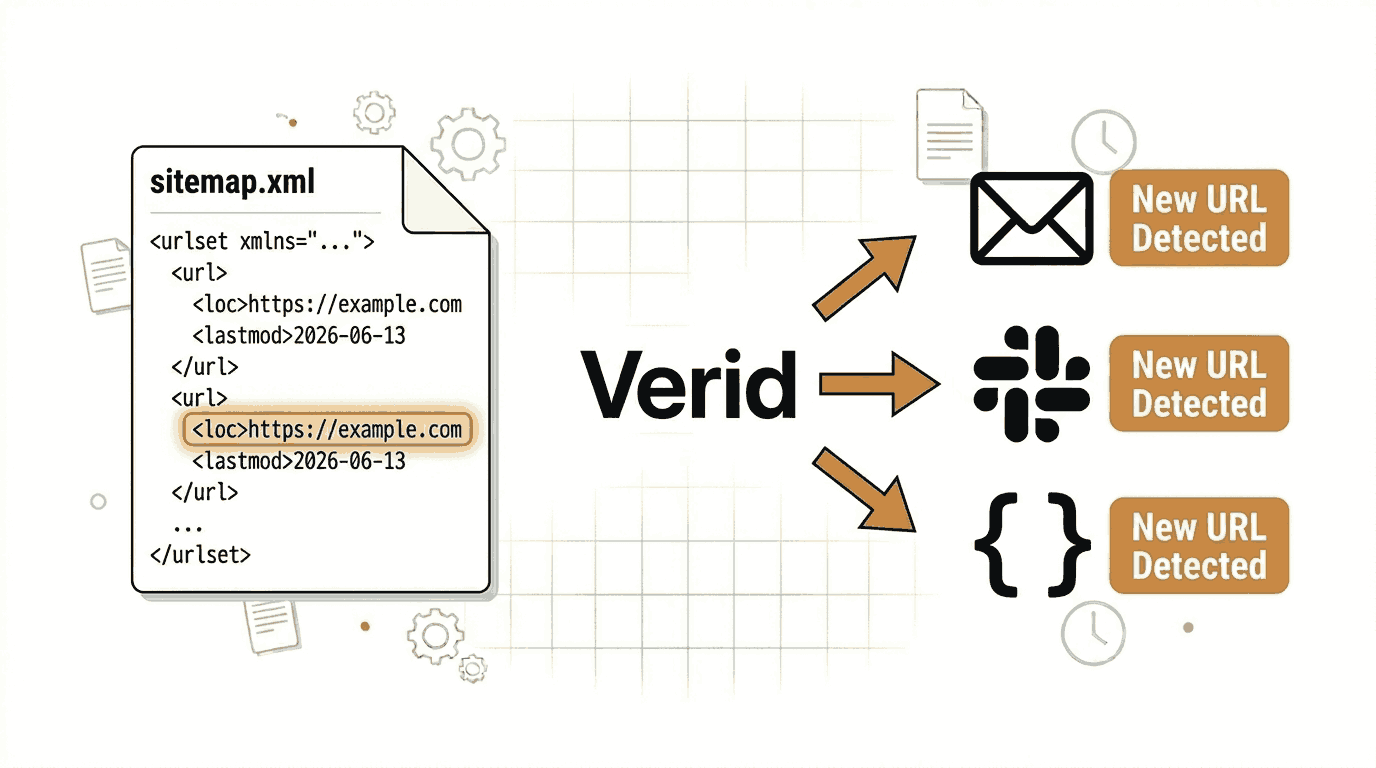
Verid supports four delivery channels. Here is how each one works for sitemap monitoring:
Email Notifications
When the url_count field increases, Verid sends a plain email to the address you configured. The email contains a readable summary of what changed, including the before and after values. You do not need to log in to the dashboard to see the result.
Email delivery is available on all plans, including the free trial.
Webhook Delivery
A webhook sends a signed HTTP POST request to any URL you specify, such as an endpoint in your own application. This lets you build custom workflows: automatically crawl the new URLs, trigger a content analysis, or update a database.
All webhooks are signed with HMAC-SHA256. You verify the Verid-Signature header before processing the payload. Full verification examples in multiple languages are available in the Verid webhooks documentation.
If your server is temporarily unavailable, Verid retries the webhook up to 6 times with exponential backoff and places persistently failed deliveries into a dead-letter queue.
Slack Notifications
Add a Slack incoming webhook URL as your delivery destination and Verid will drop the before-and-after diff directly into your chosen Slack channel. This is useful for team visibility: everyone on your content or SEO team sees the alert the moment new competitor pages appear.
Discord Notifications
Discord webhook delivery works the same way as Slack. Useful for teams and communities that coordinate on Discord.
Sitemap Monitoring Use Cases
SEO Content Monitoring
When a competitor publishes a new blog post or landing page, their sitemap updates within hours. By monitoring their sitemap, your SEO team gets an automatic alert before the new content starts ranking. You can react with counter-content, update your internal linking strategy, or simply track content velocity over time.
Competitor Intelligence
New product pages, feature announcements, pricing pages, and case studies all appear in sitemaps before they are widely visible. A sitemap monitor gives you an early signal of what a competitor is building or launching without requiring any manual checking.
News and Research Monitoring
Publishers, government agencies, regulatory bodies, and research institutions all maintain sitemaps. Monitoring these is a reliable way to stay on top of new reports, filings, and publications without visiting dozens of websites daily.
Large Website Self-Monitoring
If you manage a large website, verifying that new pages are correctly added to the sitemap after a deployment is an important quality check. A Verid monitor on your own sitemap confirms that your sitemap generation is working and that search engines will be able to discover your new content.
Verid vs. Manual Sitemap Checking
Here is a direct comparison of the two approaches:
| Factor | Manual Checking | Verid Automated Monitoring |
|---|---|---|
| Time required | 5 to 15 minutes per check | Zero, runs automatically |
| Accuracy | Easy to miss new entries in long sitemaps | Counts every <loc> tag precisely |
| Frequency | As often as you remember | As often as every minute, on any plan |
| Alerts | None, you have to check yourself | Email, webhook, Slack, or Discord |
| Scalability | 1 to 2 sitemaps before it becomes unmanageable | Unlimited monitors on every plan |
| History | None unless you manually save files | Up to 2 years of run history depending on plan |
| Cost | Your time | 14-day free trial (200 runs), then paid plans from $9/month |
Manual checking works when you have one or two sitemaps to track and you only need a rough sense of change. For anything more consistent or at scale, automated monitoring is the practical choice.
Frequently Asked Questions
How can I monitor a sitemap.xml file for new URLs?
You can monitor a sitemap.xml file using Verid. Create a monitor pointing to the sitemap URL, use the Regex extraction method with the pattern <loc> to count all URLs, and set the predicate to field_increases_by_absolute with a threshold of 1. Verid will run on a schedule and alert you by email, webhook, Slack, or Discord whenever new URLs are added.
How often should I check a sitemap for changes?
It depends on how frequently the site publishes. News sites may publish dozens of times per day, so hourly checks (about 720 runs a month) or 15-minute checks (about 2,880 runs a month) are appropriate. For most blogs or business websites that publish a few times per week, daily checks are sufficient and fit easily in Lite's 1,000 runs a month.
Does sitemap monitoring help with SEO?
Yes. Knowing when a competitor publishes new content lets your SEO team respond faster. You can identify content gaps, monitor competitor content velocity, and ensure your own pages are consistently added to your sitemap after deployment. Sitemap monitoring is a practical tool for competitive SEO research and content strategy.
Can I receive an alert when a specific website publishes a new page?
Yes. As long as the website has a publicly accessible sitemap.xml, you can monitor it with Verid. Simply add the sitemap URL as your monitor target and configure email or webhook delivery. You will receive an alert whenever the URL count in that sitemap increases.
What happens on the first run of a Verid monitor?
The first run establishes a baseline. No notification is sent on the first run because there is no previous value to compare against. From the second run onward, Verid compares the current URL count to the previous one and alerts you if the predicate is satisfied.
Want this running on your own URL? Spin up the same monitor in about a minute. 5 free, no credit card.
About the author

Software Engineer & Technical Writer
Hanzala works as a software engineer and technical writer. He documents Verid’s API and SDK while building against them, and writes tutorials on monitoring pages, parsing structured data, and wiring alerts into tools a team already uses.
More from HANZALA SALEEM →Related use cases
How to Monitor JSON API Fields and Get Alerts When Data Changes
Learn how to track specific fields in any JSON API response and receive instant alerts when values change. Step-by-step guide using Verid.
View blueprint →Developer & DevOpsHow to Get Automatic PyPI Package Update Alerts
Get instant alerts when any PyPI package releases a new version. Set up automated Python package update notifications with Verid in minutes.
View blueprint →Developer & DevOpsHow to Track NPM Package Version Changes Automatically
Learn how to monitor npm package versions automatically and get email alerts the moment a new version is published. No code required to get started.
View blueprint →