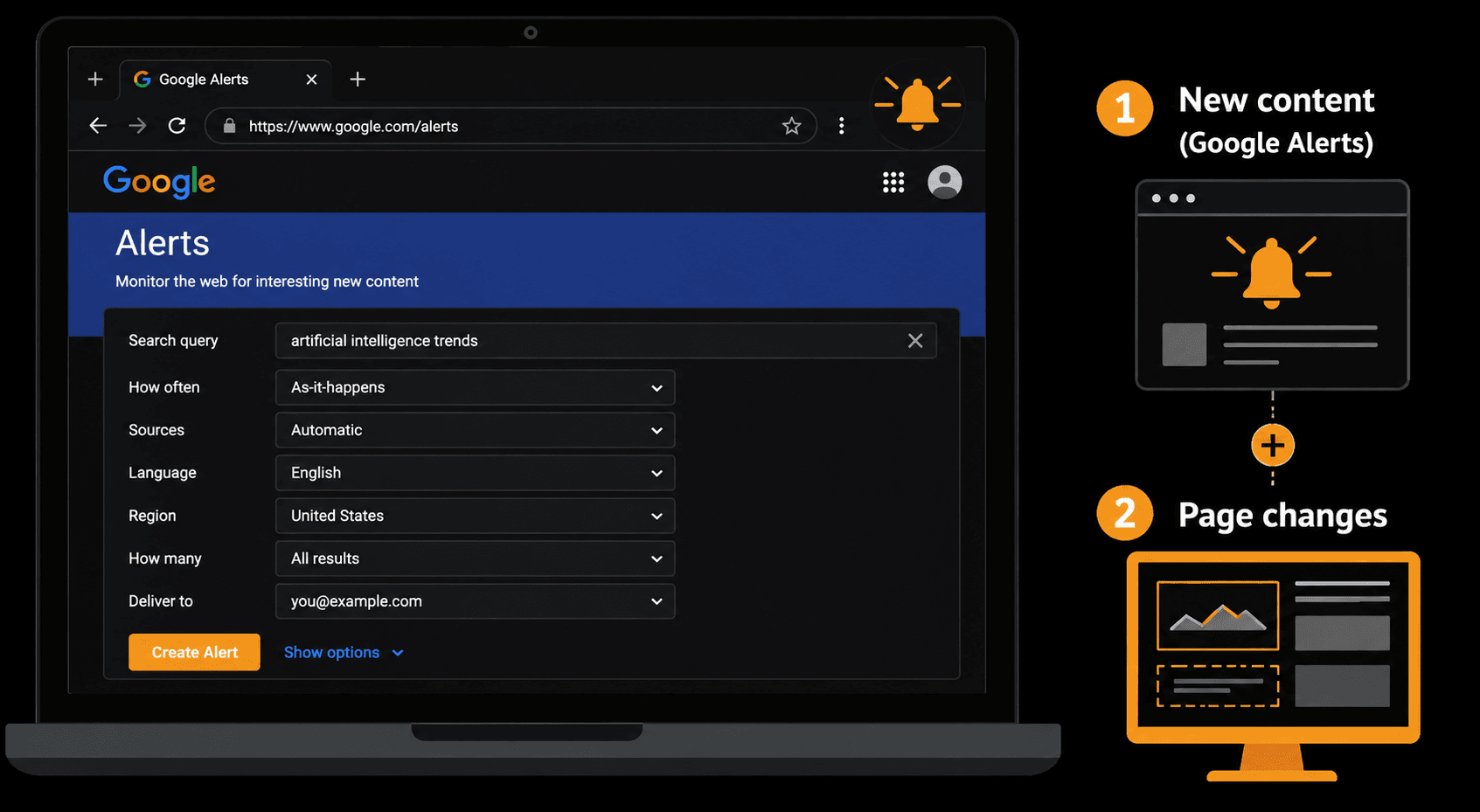
How to Set Up Google Alerts (+ What They Don't Catch)
Google Alerts setup takes about two minutes and costs nothing. For tracking new articles, brand mentions, and breaking news on any topic, it remains one of the most underused free tools available. But there's a category of web changes it cannot catch — and if you don't know where the boundary sits, you'll have blind spots you don't know about.
This guide walks you through how to set up Google Alerts correctly, tune the Google Alerts settings that actually matter, and build a practical alert workflow. Then it covers exactly what Google Alerts misses — and when you need a dedicated tool to monitor a website for changes instead.
How to Set Up Google Alerts: The Step-by-Step Process
Go to alerts.google.com. You need a Google account — any Gmail address works.
Step 1 — Enter your search query
Type your query in the search bar at the top. This is the same query language as Google Search, which means you can use operators from day one:
"verid.dev"— exact match, no partial hitscompetitor site:techcrunch.com— restrict to one publication"product recall" OR "safety notice" automotive— any of several termsAI startup -funding— exclude a term you don't care about
The preview pane below the search bar updates in real time. If you see irrelevant results immediately, tighten the query before saving.
Step 2 — Configure the Google Alerts settings that matter
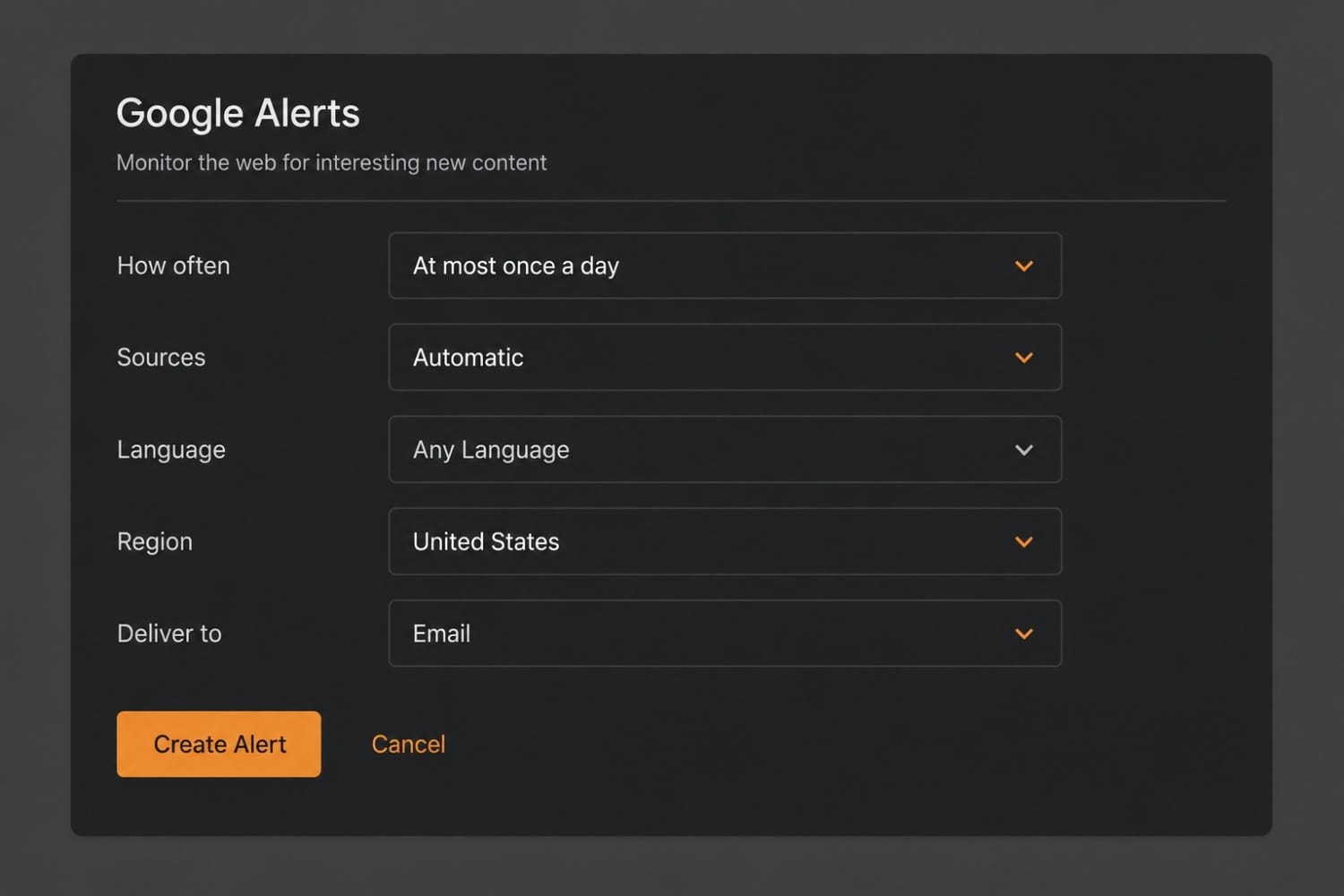
Click "Show options" to expand the settings panel:
How often. Your three choices are "As-it-happens," "At most once a day," and "At most once a week." As-it-happens sounds appealing but generates noise quickly. For most monitoring purposes — brand mentions, competitor announcements, industry news — "At most once a day" hits the right balance between speed and inbox sanity. Reserve as-it-happens for genuine time-sensitive scenarios like PR crisis monitoring.
Sources. Leave this on "Automatic" unless you have a specific reason to narrow it. "News" is useful if you only care about indexed news publications. "Web" catches a broader crawl. "Blogs" and "Video" are narrow enough to be niche-specific.
Language and region. These default to your browser's detected settings. If you're monitoring a US competitor, set region to United States explicitly — otherwise Google may weight results from your local market.
How many. "All results" versus "Only the best results." Start with "Only the best results." You can always switch to "All results" if you're missing relevant hits — but the noise level on "All results" for any moderately competitive keyword is substantial.
Deliver to. Email is the default. RSS feed is the alternative: it sends alerts to a feed reader (Feedly, NewsBlur, Inoreader) instead of your inbox. If you're managing more than five alerts, RSS routing keeps your inbox clean without losing the signal.
Step 3 — Save the alert
Click "Create Alert." It appears in your alert list immediately. Google will send its first batch within minutes if matches exist, or within 24 hours if the crawl hasn't returned results yet.
Step 4 — Manage and tune existing alerts
Your full alert list lives at alerts.google.com. From there you can edit the query, change delivery frequency, or delete alerts. There's no bulk edit feature — each alert is modified individually.
Tune after the first week. The first batch of results tells you whether the query is too broad or too narrow. Refine accordingly. A brand monitoring alert that fires 40 times a day is producing noise, not intelligence.
7 Google Alerts Use Cases That Actually Work
1. Brand and reputation monitoring
Set up an alert for your company name, domain, and key product names. You'll catch new reviews, mentions in roundups, and press coverage within the same day they're indexed. Add a variant with common misspellings if your brand name is often mistyped.
2. Competitor announcement tracking
Create one alert per competitor using "[competitor name]" announcement OR launch OR partnership. This surfaces press releases and news coverage without catching every blog post that mentions them in passing. Note the limit here: this catches what's written about competitors, not what changes on their site. To monitor competitor website changes directly — pricing, features, positioning — you need page-level monitoring, covered below.
3. Industry keyword monitoring
Pick five to ten terms that define your market — "website change detection," "web monitoring tool," "track website changes" — and run weekly alerts on each. This builds a passive reading list of what's being written in your niche without active research time.
4. Job listing intelligence
[competitor] "is hiring" OR "we're looking for" OR "job opening" catches hiring announcements on their blog and press releases. A competitor suddenly hiring ten engineers in a specific function tells you something about their roadmap. (For watching the careers page itself, job listing monitoring catches postings that never get announced.)
5. Byline and author tracking
If you write for publications or want to track specific journalists covering your space, set an alert for "[author name]" site:[publication].com. You'll catch every new article from that writer.
6. Regulatory and compliance document tracking
For heavily regulated industries, alerts on agency names combined with terms like "guidance," "proposed rule," or "enforcement notice" surface regulatory updates within hours of publication. This is faster than checking agency websites manually — though for regulatory filings and policy pages that get edited in place rather than re-published, an alert when the webpage changes is the only reliable signal.
7. Backlink and mention prospecting
"[your brand]" -site:[yourdomain].com catches pages that mention your brand but don't link to you — a clean prospecting list for link reclamation outreach.
Advanced Google Alerts Tips
Boolean operators that save hours
Most users type a keyword and stop. These Google Search operators change the quality of results significantly:
| Operator | Syntax | Effect |
|---|---|---|
| Exact phrase | "exact phrase" | Only matches where all words appear in order |
| OR | term1 OR term2 | Either term triggers the alert |
| Exclusion | keyword -unwanted | Drops results containing the excluded word |
| Site-specific | keyword site:domain.com | Limits to a single domain |
| Title search | intitle:keyword | Matches keyword in the page title only |
Combining these: "pricing page" site:competitor.com won't work the way you'd hope (Google Alerts doesn't send a webpage change alert when an existing indexed page updates — more on this below). But "competitor name" "pricing" -site:competitor.com surfaces every third-party write-up about their pricing, which is genuinely useful competitive intelligence.
Route alerts to RSS to manage alert fatigue
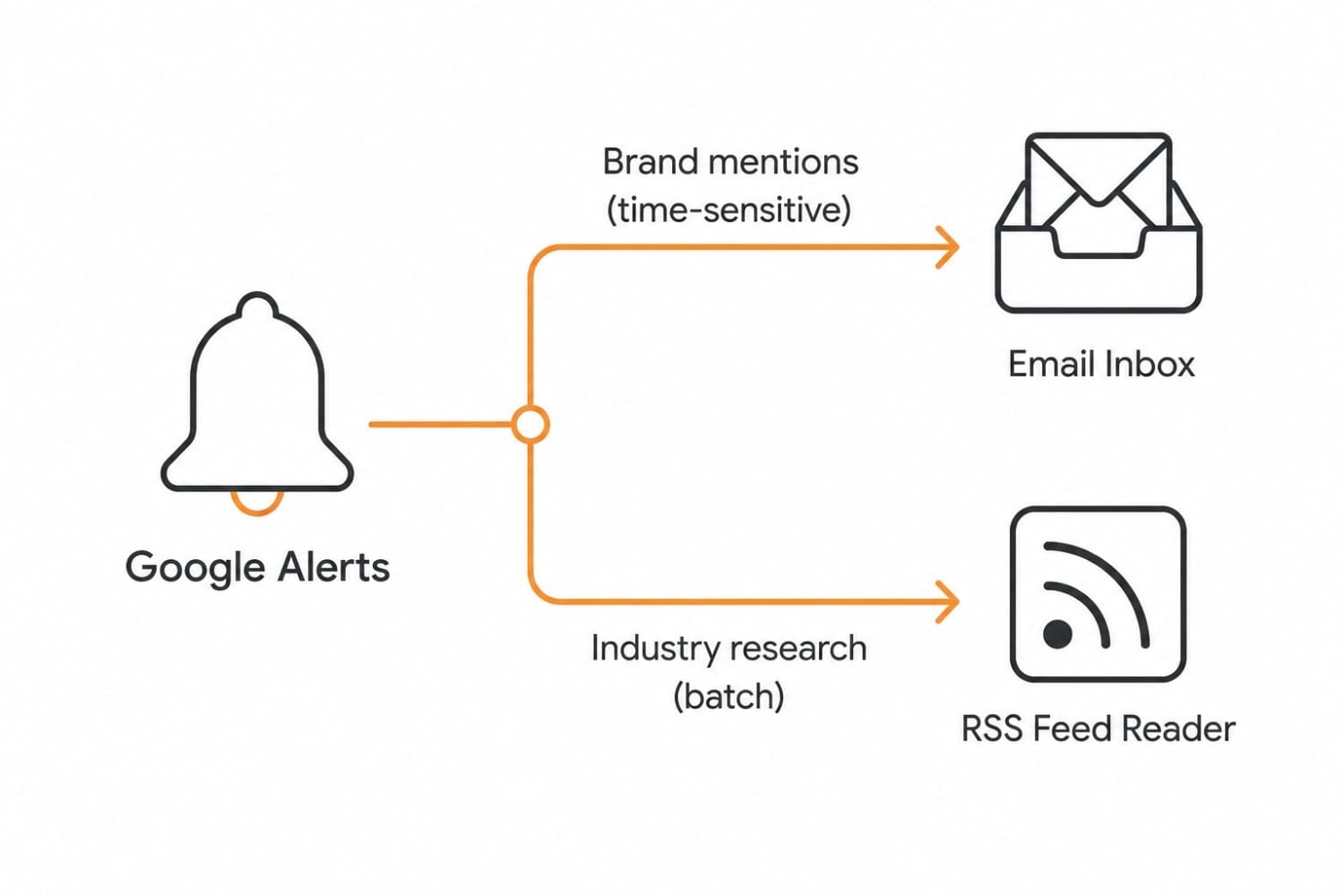
Alert fatigue is real. When every alert lands in your inbox, the signal drowns in email volume. The fix is delivery segmentation:
- Route time-sensitive alerts (PR monitoring, brand mentions) to email
- Route research alerts (industry keywords, competitor news) to a feed reader via RSS
- Set a 30-minute weekly slot to read the feed rather than processing it on arrival
To set up RSS delivery: edit the alert, choose "RSS feed" from the "Deliver to" dropdown, copy the generated URL, and paste it into your feed reader.
When alerts don't arrive: common failure modes
If you're not receiving expected alerts, check these in order:
- Gmail spam folder — Google Alerts emails frequently get caught by spam filters, even when sent from Google's own servers. Add
googlealerts-noreply@google.comto your contacts to prevent this. - Query too narrow — An exact-match query for a long phrase may generate zero results in a day. Check the preview at alerts.google.com to confirm results exist.
- "Only best results" filtering too aggressively — Switch to "All results" temporarily to see if matches exist but are being filtered out.
- New page not yet indexed — Google Alerts only fires when Google crawls and indexes a new page. Publication to alert delivery can lag 12–48 hours for lower-priority domains.
What Google Alerts Cannot Do (and Why It Matters)
This is the part most guides skip.
Google Alerts works by watching Google's search index for new documents. When Google crawls a URL and indexes it, the alert system checks whether the new document matches any saved queries. If it does, it fires an alert.
The key phrase is "new documents." Google Alerts has no mechanism to detect changes to pages that are already indexed. If a competitor's pricing page quietly updates from $49/month to $79/month, that page already exists in the index. Google doesn't re-index it and trigger an alert — even though the page changed. There is no built-in way to get an alert when a webpage changes.
The same limitation applies to:
- Landing page copy changes — A/B test variants, value proposition rewrites, competitor ad and landing copy changes added to existing pages
- Terms of service updates — changes to ToS and privacy policies that were already indexed months ago
- Product page modifications — out-of-stock notices, price changes, removed features
- Visual and layout changes — Google indexes text content, not design or layout
For all of these, you need website change detection: a tool that actively monitors the live page itself, not the search index. That's a different category of tool entirely — a website change monitor.
How website change monitoring works differently
A website change monitor visits the actual URL on a schedule — every 5 minutes, every hour, every day — and compares the current page state against what it recorded on the last visit. When it detects a difference (new text, removed content, a price figure that changed), it sends a webpage change alert immediately.
This means:
- You get notified when a competitor's existing pricing page changes, not just when a new page about their pricing appears
- You can monitor a specific element on a page (a price, a status badge, a button label) rather than the whole document
- Alerts fire based on actual page state, not Google's crawl schedule
Google Alerts vs. Website Change Monitoring: When to Use Each
If you've been searching for Google Alerts alternatives, the honest answer is that these two tool categories aren't competing for the same job. Using both together is the right approach for serious monitoring.
| What you want to track | Best tool |
|---|---|
| New articles mentioning your brand | Google Alerts |
| Competitor press releases and announcements | Google Alerts |
| Industry news on a keyword | Google Alerts |
| A specific page's content changing | Website change monitor |
| Competitor pricing page updates | Website change monitor |
| Terms of service or policy document changes | Website change monitor |
| Job postings on a competitor's careers page | Website change monitor |
| Out-of-stock or back-in-stock product pages | Website change monitor |
| Your own pages' titles and meta descriptions drifting | Website change monitor |
The decision rule is simple: if the page already exists and you want to know when it changes, use a website change monitor. If you want to know when new content about a topic appears anywhere on the web, use Google Alerts.
How to Monitor Website Changes with Verid
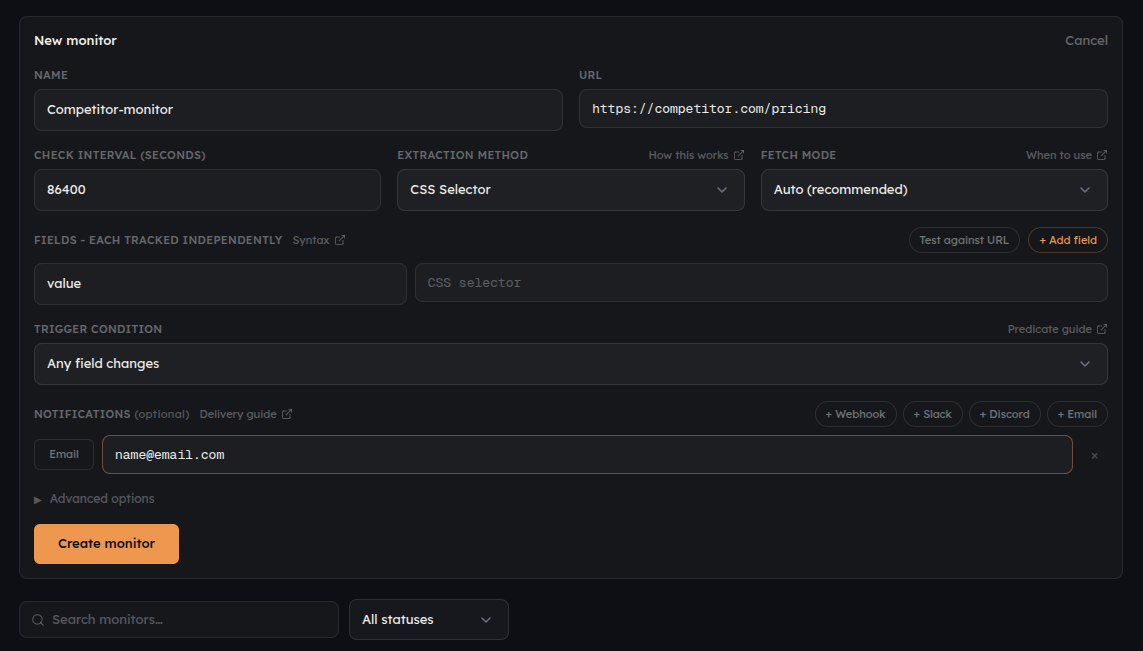
Verid is a website change monitor built for this second category of problems. You point it at a URL, set a check interval, and it alerts you the moment it detects a change on that page.
Setup takes under five minutes:
- Start a free trial — 14 days, no credit card required
- Add a monitor — paste the URL you want to watch
- Select your check interval — as often as every minute on any plan, including the free trial
- Choose your alert method — email, Slack, Discord or signed webhooks on every plan, with more destinations per monitor on paid plans
- Save — Verid starts to track website changes immediately
The 14-day free trial includes unlimited monitors, 200 runs, and 14 days of change history, with no credit card required. After that, Lite ($9/month, 1,000 runs a month) is enough for most individuals monitoring a handful of competitor pages or tracking key documents.
Where Verid differs from a basic page-watcher (full breakdown on the features page):
- Element-level monitoring — you can target a specific section of a page (a price, a header, a call-to-action) rather than monitoring every pixel of a page and getting alerted for ads and navigation changes
- Change history — every detected change is stored with a diff, so you can see exactly what changed and when, not just that something changed
- Webhook delivery — send change alerts to your own systems or any webhook endpoint
For teams who monitor competitor website changes, track landing page copy across a product line, or watch for regulatory document updates, Verid handles the cases Google Alerts structurally cannot. Browse the full use case library for more.
Frequently Asked Questions
How do I set up a Google Alert?
Go to google.com/alerts, type the term or phrase you want to track, click Show options to set frequency, sources, language, region, and how many results, then click Create Alert. Google emails you when new indexed pages match your term.
How does Google Alerts work?
Google Alerts watches Google's search index. When Google crawls and indexes a new page that matches your query, it sends you an email (or adds it to your feed). It does not check a specific page on a schedule — it reacts to what Google indexes, which is why it misses changes inside a page it has already crawled.
How do I manage or delete a Google Alert?
On google.com/alerts, each alert has a pencil icon to edit (change frequency, sources, or delivery) and a trash icon to delete it. You manage all alerts tied to your Google account from that one page.
Why did my Google Alerts stop working?
Common causes: the term is too narrow and nothing new is being indexed, the alert was set to "only the best results," delivery is landing in spam, or the topic simply isn't producing fresh indexed pages. Google Alerts can't notify you about changes to a page it already indexed.
Can Google Alerts monitor a specific web page for changes?
No. Google Alerts tracks new indexed content matching a keyword — it can't tell you when a specific page's price, stock status, or policy text changes. For that you need a page-level change detector that fetches the URL on a schedule and diffs it. See our Google Alerts alternatives guide.
Is Google Alerts free?
Yes, Google Alerts is free with a Google account. It's best for tracking mentions and news, not for monitoring changes on a specific page.
About the author

Software Engineer
Suleman is a software engineer. He builds the scheduling and diffing machinery that decides when Verid re-checks a page and whether the result is worth an alert, and writes about applying the same ideas to your own monitoring setup.
More from Suleman →Related posts
SERP Analysis Tool: 10 Best Options Compared (2026)
SERP analysis tools compared: rank trackers, change detection, AI Overview support, pricing, and features — find the right fit for 2026.
Read the post →alertsHow to Send Website Change Alerts to n8n, Zapier, and Make
Learn how to send website change alerts into n8n, Zapier, or Make using Verid's webhook API, with real config, code, and setup steps.
Read the post →alertsBack-in-Stock Email Alerts Without Building a Custom System
Set up a back-in-stock email notification system in minutes - no custom code, no scrapers. Monitor any page and alert customers automatically with Verid.
Read the post →seoSEO Change Monitoring: Why Your Rankings Drop Silently
Learn how to detect silent title tag, canonical, robots.txt, and structured data changes automatically using field-level monitoring and webhook alerts.
Read the post →